Creator Studio
Last updated: March 2, 2026
Creator Studio is Tigerhall’s AI-powered tool that transforms your documents into engaging content. Whether you’re summarising reports or meeting notes, gaining new insights on articles, or want to liven up a presentation, our AI helps you craft dynamic and interactive content with ease. By providing prompts, you can shape the output to match your desired tone, style, and audience preferences.
Note: Creator Studio is currently in its free beta period. Pricing plans will be introduced in the future.
How It Works
Creator Studio simplifies content creation into three easy steps.
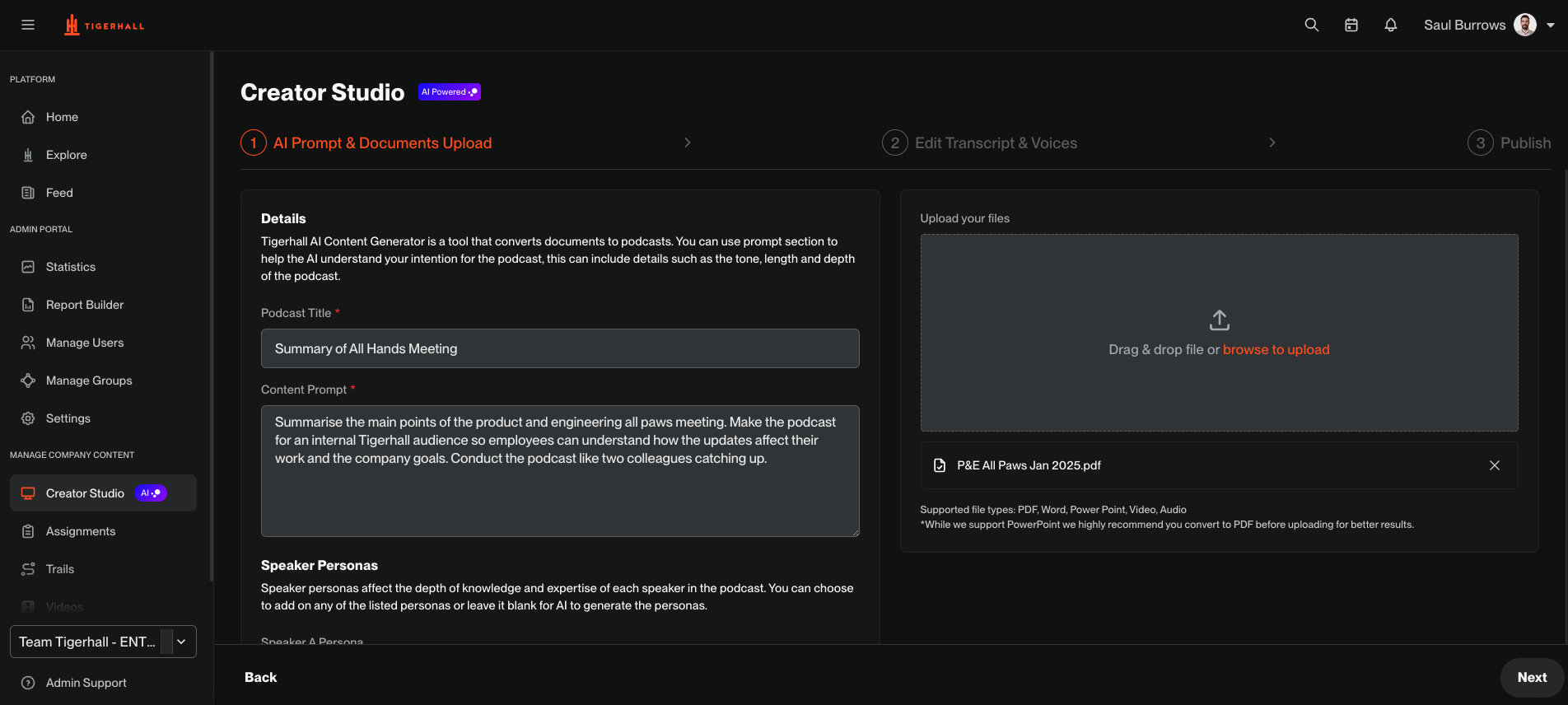
Step 1: AI Prompt & Document Upload
Start by uploading your document and providing a prompt to guide the AI. The AI will generate a transcript based on your input, ensuring that the content aligns with your needs. You can also select speaker personas at this point to help guide the tone and level of the output.
Supported file types: PDF, Word, Power Point, Video, Audio
Step 2: Edit Transcript & Voices
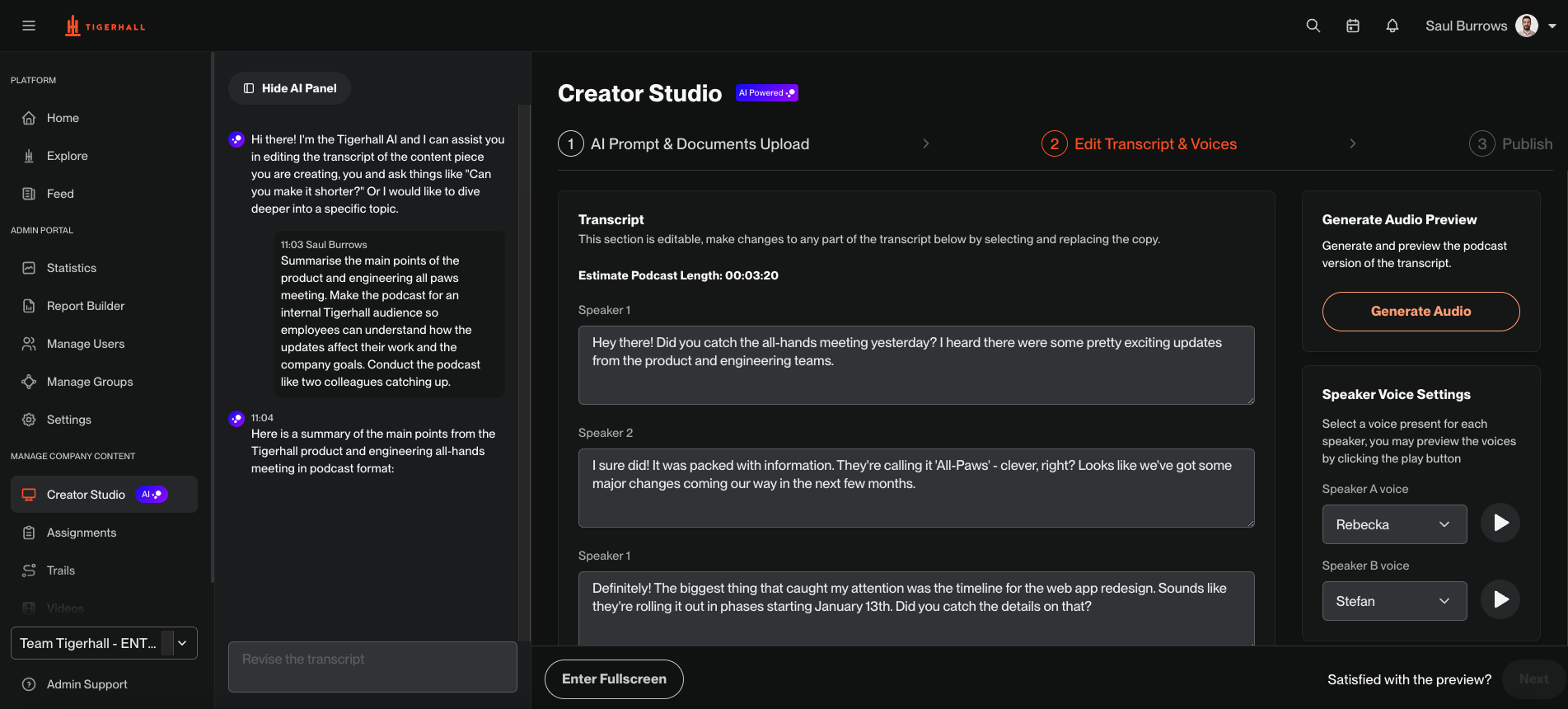
Customize the AI-generated content by making edits to the transcript. For example, you may wish to edit a particular sentence, or write a new sentence to add more context.
Use the AI Panel to make revisions to your prompt. For example, you may wish to change the style and tone via the prompt.
You can also select different voices to ensure it resonates with your audience.
Step 3: Publish
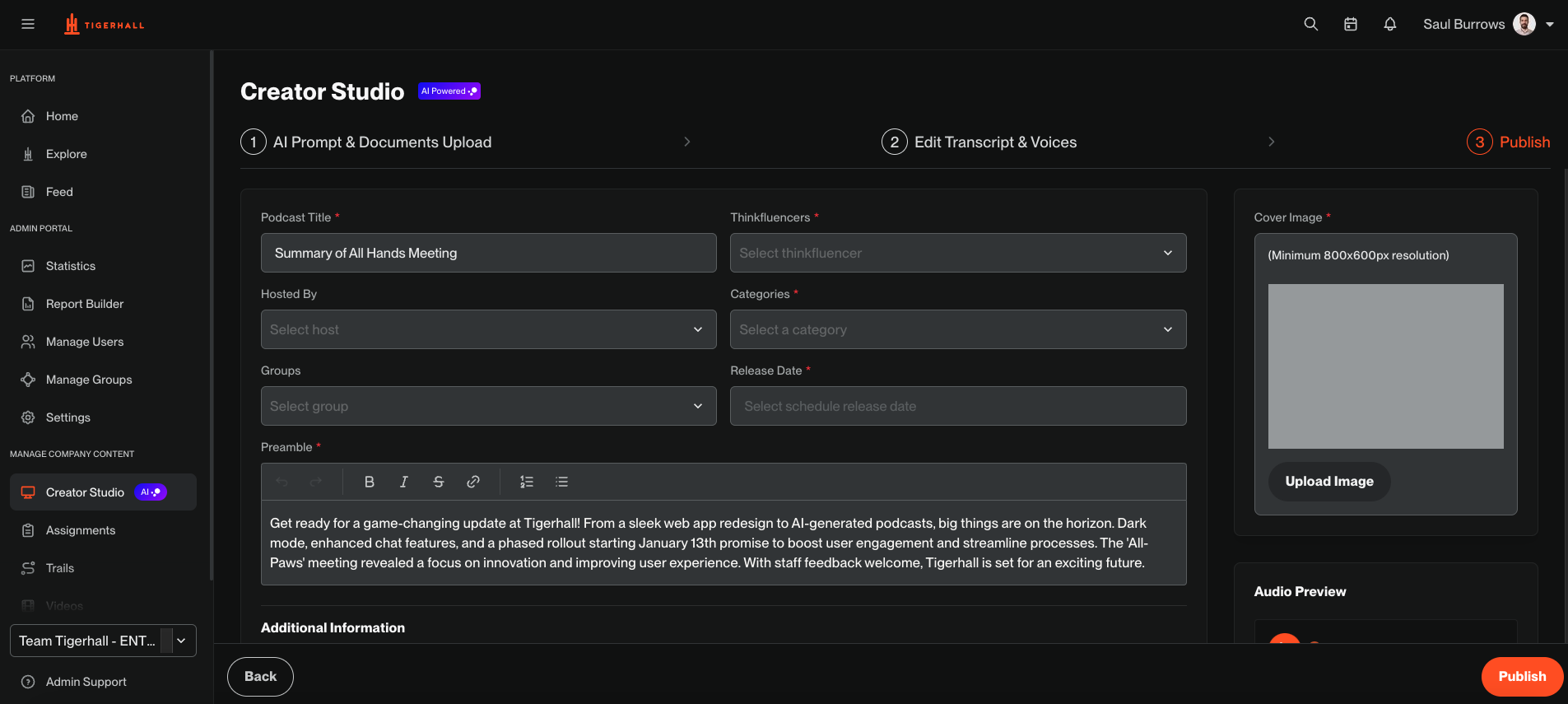
Once you’re satisfied with the content, upload a cover image, complete the content information fields and publish it instantly. Your final output will be ready for sharing and distribution.
Who can use Creator Studio?
Creator Studio is currently in its free beta period. Contact your account representative for more details and to arrange access. Future access details and pricing plans will be announced soon.
What types of documents can I upload?
The supported file types are PDF, Word, PowerPoint, Video, and Audio.
Can I use multiple prompts for a single document?
Yes, you can refine and adjust the AI output by providing different prompts to get the most relevant content.
What content types can I create using the Creator Studio?
You can create the following using the Creator Studio:
Podcasts
AI will generate a podcast transcript; you have the flexibility to make manual edits or AI edits to the transcript.
You can choose the speaker voices for each of the speakers involved.
Once you’re happy with the output, hit publish.
One-page Power Reads
AI will generate a one-page power read; you have the flexibility to make manual edits or AI edits on the output.
You can also format the power read using the same formatting options available in manual power read creation.
Videos
This will take the form of a slide-based video with an audio narration.
You have the flexibility to edit the AI-generated slides output. You can add new slides, text elements, image elements, colours, and more.
You can also modify the AI-generated slide transcript and choose the voice you would like to record your video in.
Once you’re happy with the slides and the audio transcript, you can publish your video.
Video Script with Teleprompter
This creates a script that can be used as a teleprompter to record yourself in a video.
You can choose to request recordings from other users as well. If the recording doesn’t meet your expectations, you can reject the recording and re-request it as well.
You have the option to download the video for edits and re-upload
What is the Target Audience?
This section allows you to add your prompt a target audience to curate and customise your content to the selected audience.
Ensure you have group descriptions in place (using the Stakeholder Groups page) prior to using this feature. The description is fed into the prompt as a means of customising the output.
How do I report an issue or provide feedback?
If you encounter any issues or have suggestions, you can contact our support team via the Help Center.