Content Approval Workflows
Last updated: March 2, 2026
Approval Flows is a governance tool that helps you maintain content quality on Tigerhall. Admins can assign approvers, require sign-off, and track the status from draft to publication. Approval Flows help manage compliance, governance, and message accuracy across all content formats (both AI and manual) in Tigerhall.
How to turn on approval flows in Tigerhall?
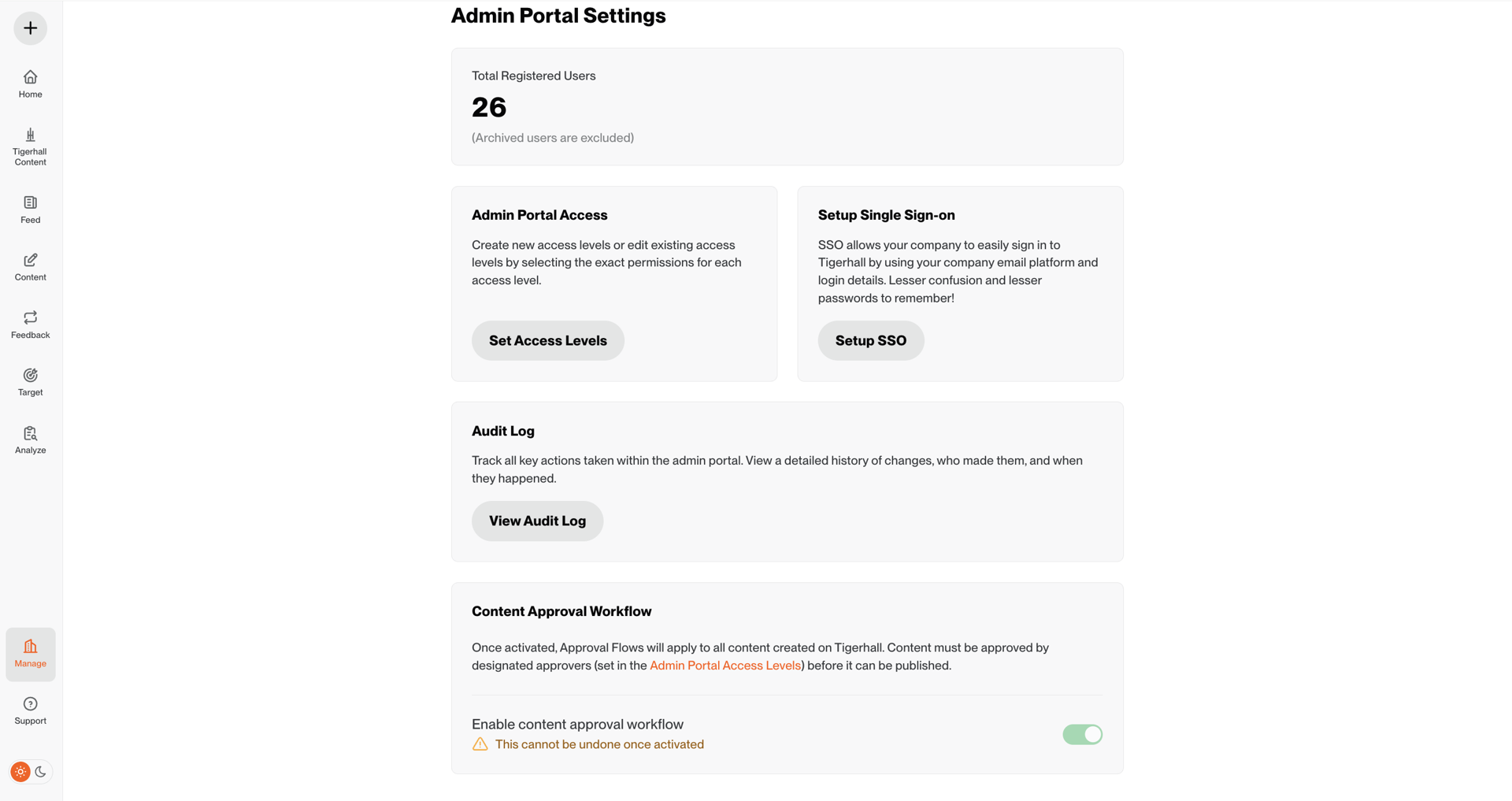
Go to the Settings tab
Turn the toggle for Content Approval Workflow on
Please note this action is one-way at the admin level. Ensure you are aware of the potential implications of this before toggling approval flows on.
Who are Global Approvers?
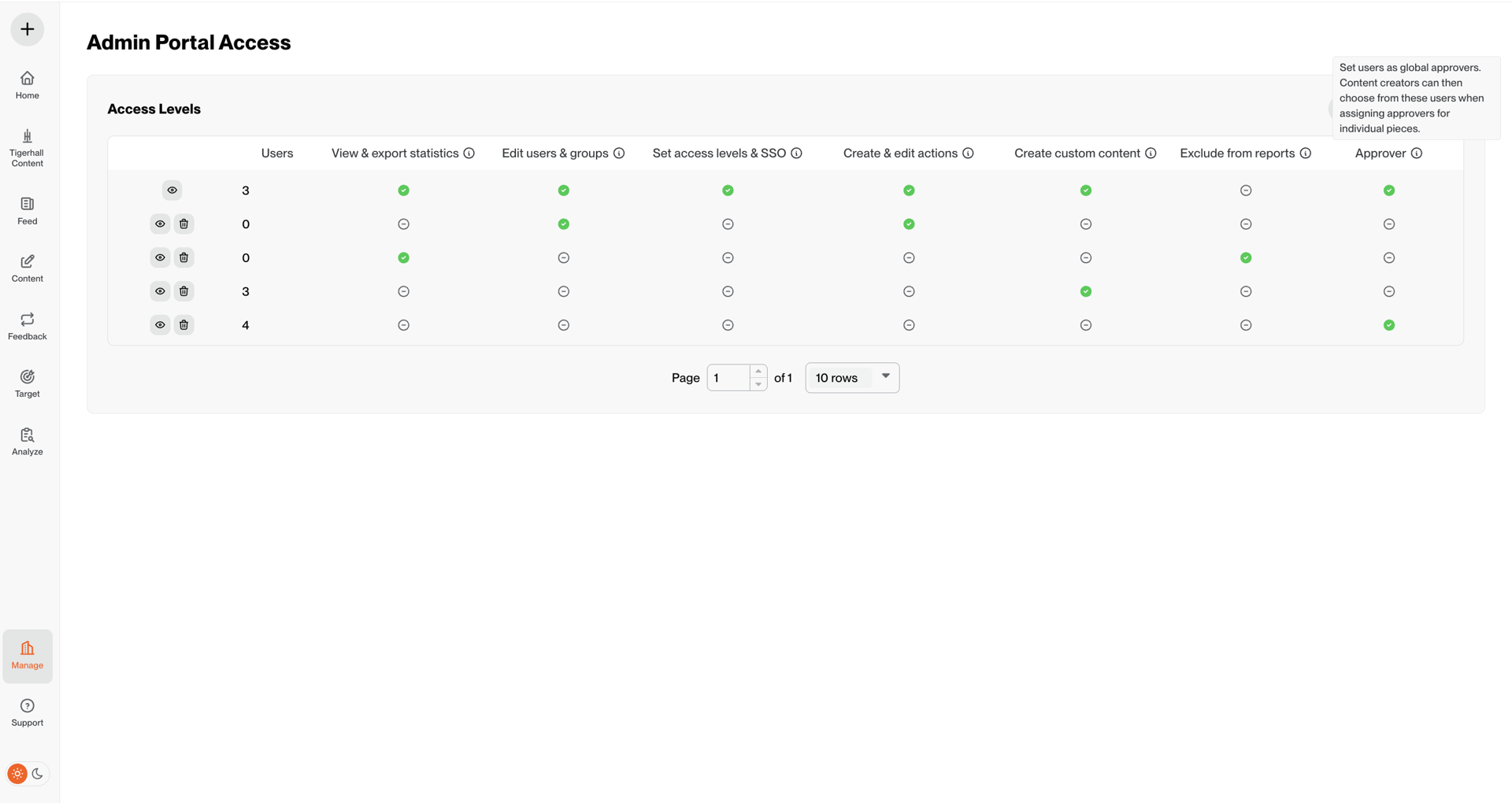
Global approvers are the set of users who have the “Approver” permission tagged to them under Access Levels in the settings page.
All org admins have this permission by default.
Global Approvers can review and approve all content, but approval actions only appear if they’re assigned as approvers during content creation.
Global Approvers can provide feedback in the “Comments” tab for any content in the Approvals page, even if they’re not explicitly chosen as a content approver by the content creator.
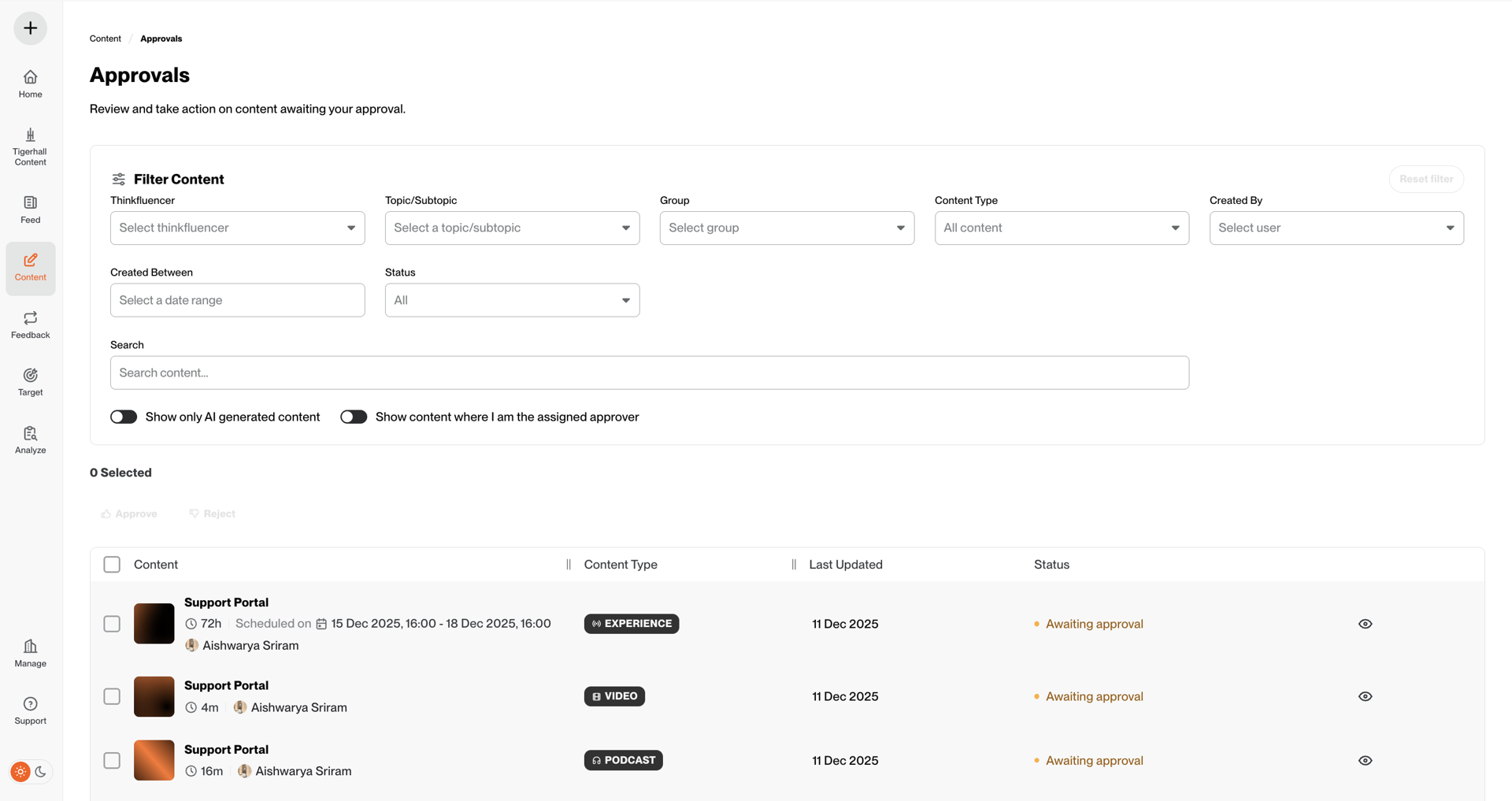
Users with this “Approver” permission have access to the “Approvals” page under the Content tab.
This permission can be edited just like other permissions available to admins in the Access Levels page.
How to give someone Approver status?
To make someone a global approver:
Go to the Settings tab → Admin Portal Access
Either create a new access level or, in an existing access level, turn on the approver permission
Users in this access level can now be assigned as approvers during content creation.
Are all org admins approvers by default?
Yes, all org admins have the approver permission turned on by default.
As an approver, how do I find content that requires my approval?
As an approver, there are two ways to find content that requires your approval:
Notifications
You will receive a notification in the notification center when you have content ready to review and approve.
Content tab
Under the Content tab, you will find a page called Approvals. This page will list all the content pieces that are in pending approval/approved/rejected statuses.
This option is only valid if the user has both “Approver” and “Create Custom Content” permissions toggled in the Access Levels page:
In the individual content tabs, you can go into a content piece and click into comments to provide approval/comments on the piece. This is useful when providing feedback on content where you aren’t assigned as an approver.
What can I see in the Approvals page?
This page is accessible by all org admins and other users who have the Approver permission (set in Admin Portal Access).
On this page, you can view all content pieces that belong to the following statuses:
Awaiting Approval
Approved
Rejected
Once a piece is moved to the scheduled or published status, it will no longer be visible on the Approvals Page. It can be accessed as you normally would in the individual content pages.
As an approver, how do I provide feedback on content?
As an approver, once you enter the content piece to approve, you will find a comments section to list out your feedback. For podcasts and videos, the comments will be timestamped to the point in the podcast/video for precise feedback on the content.
Please note, these comments will be wiped when the status of the content changes to scheduled/published. This is done to ensure end users don’t see comments sent during the approval process.

As an approver, what are the areas of a content I can provide feedback on?
As an approver, you can review the following about a content piece:
The raw audio/video file or the power read content
Preamble
Additional Information
Publish Date
Cover Image
Thinkfluencers
Topics
As an approver how do I approve or reject content?
Once you’re in the review screen, you will see two buttons to approve or reject content. Clicking on these will lead you to a pop-up, where you can choose to provide more information on the reasons for approval/rejection.
Please note, the approve/reject action cannot be undone unless the content is resent for approval.

As an approver, can I provide feedback on content that doesn't require my approval?
Yes, as a global approver, you can view any content being created and leave feedback in the “Comments” section. However, you’ll only see the options to approve or reject content if you’ve been assigned as an approver for that specific piece.
As an approver, can I bulk approve/reject content?
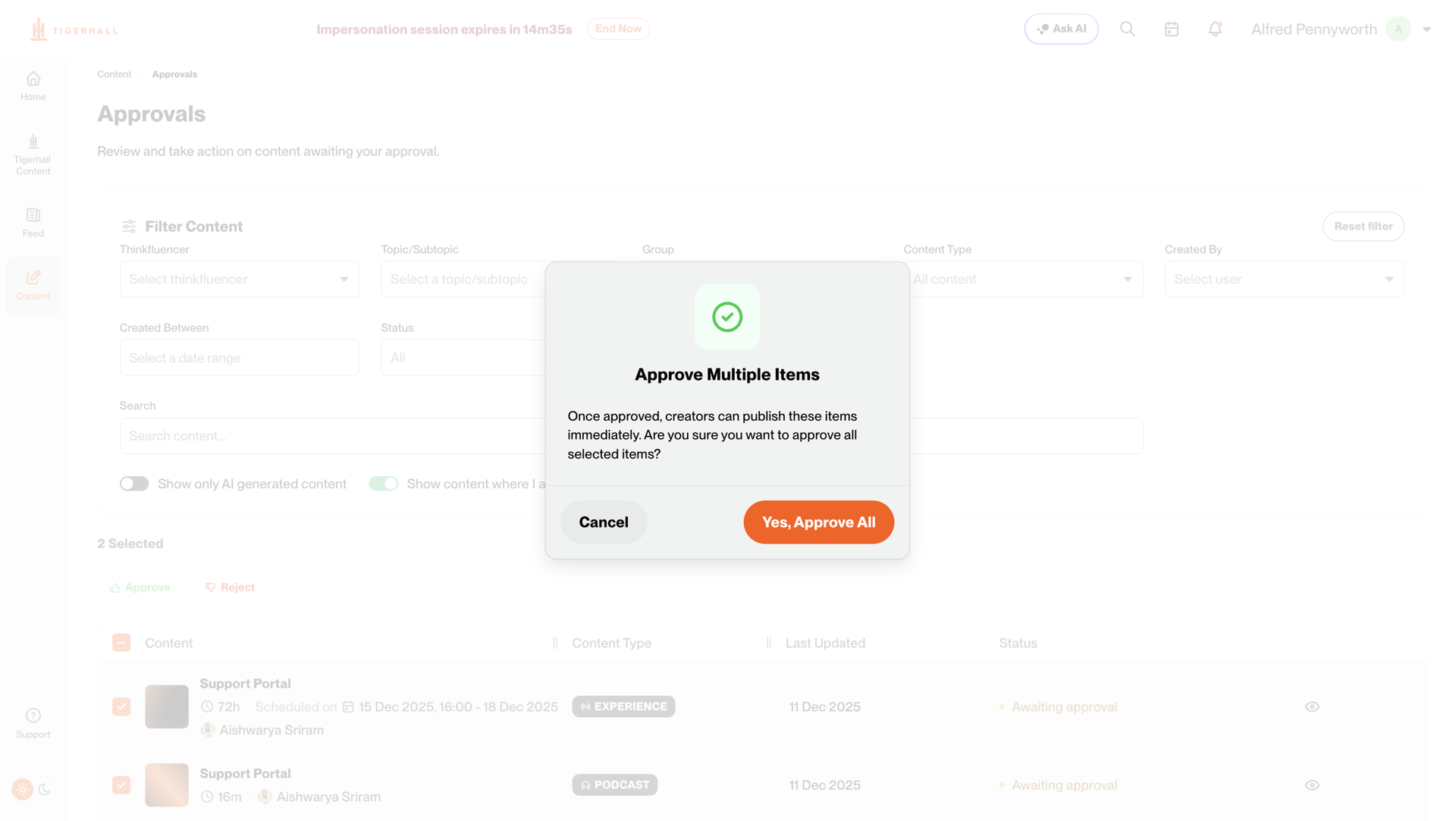
Yes, you can bulk approve/reject content from the approvals page. However, please note that you cannot provide notes in this process.
To use this feature:
Turn on the toggle that shows content that is awaiting your approval
Choose the content you would like to approve or reject
Please note that if a content is in rejected status and you approve it using the bulk approve feature, this will not change the status of the piece to approved. This is because the approve/reject action cannot be undone unless the content is resent for approval.
As a content creator, how do I send my piece for approval and manage the publishing?
During content creation, you can add approvers in the “Approvers” field. When sending a piece for approval, you can choose whether the piece should auto-publish post-approval or require manual publishing post-approval.
Once you’ve sent the piece for approval, the content piece will move to the Awaiting Approval status, and the selected approvers will receive a notification to review your content.
As a content creator, how to publish a content that has been approved by all selected approvers?
Once you have received approval from all approvers, the following describes the flow of the content across statuses:
If auto-publishing was turned on:
The content piece will automatically move to scheduled/published status based on the release date set.
If auto-publishing was turned off:
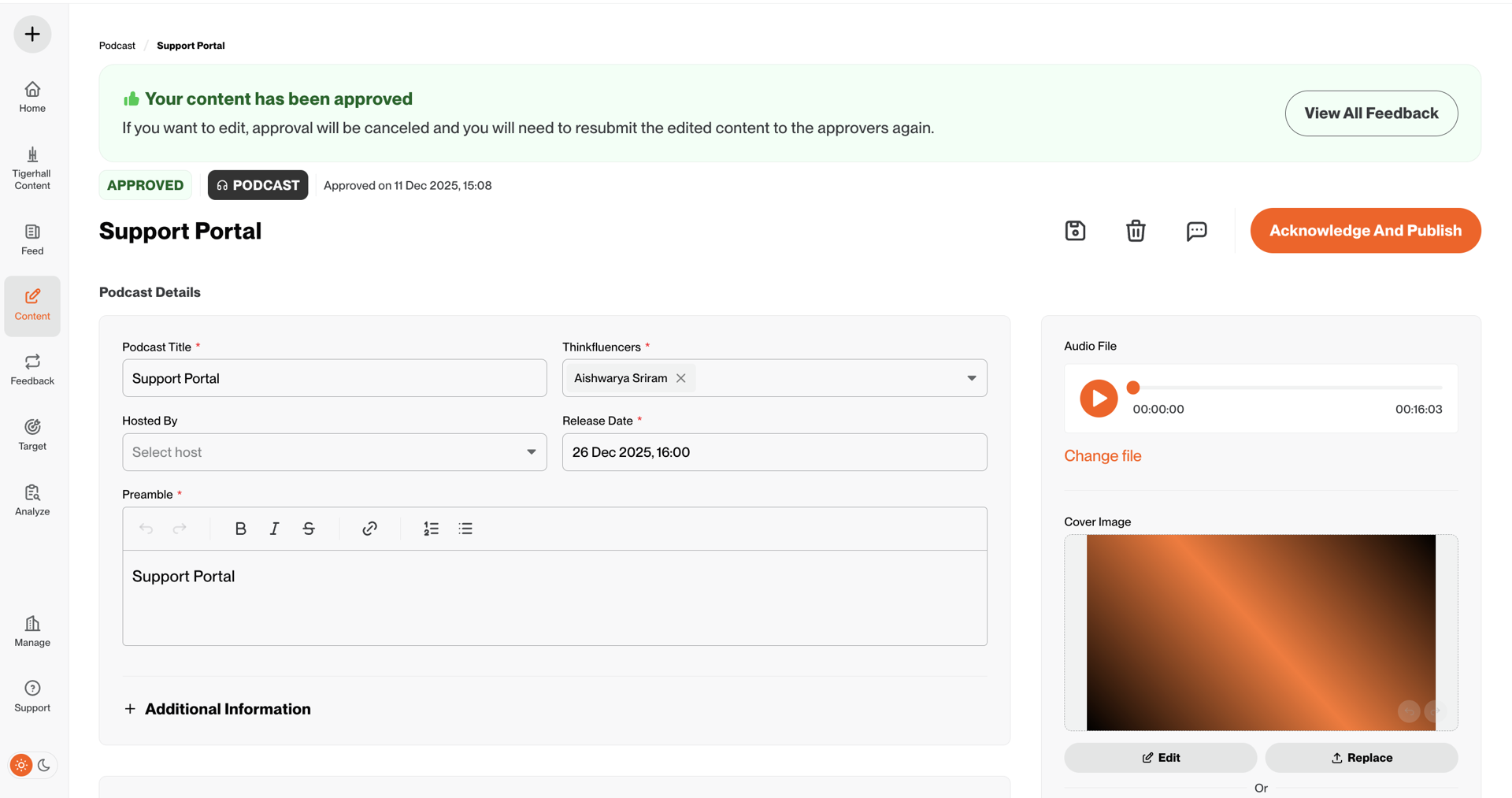
The content piece will need to be manually published once it's in the Approved status by clicking the “Acknowledge and Publish” button inside the content page in the admin portal.
As a content creator, how do I view approvers comments?
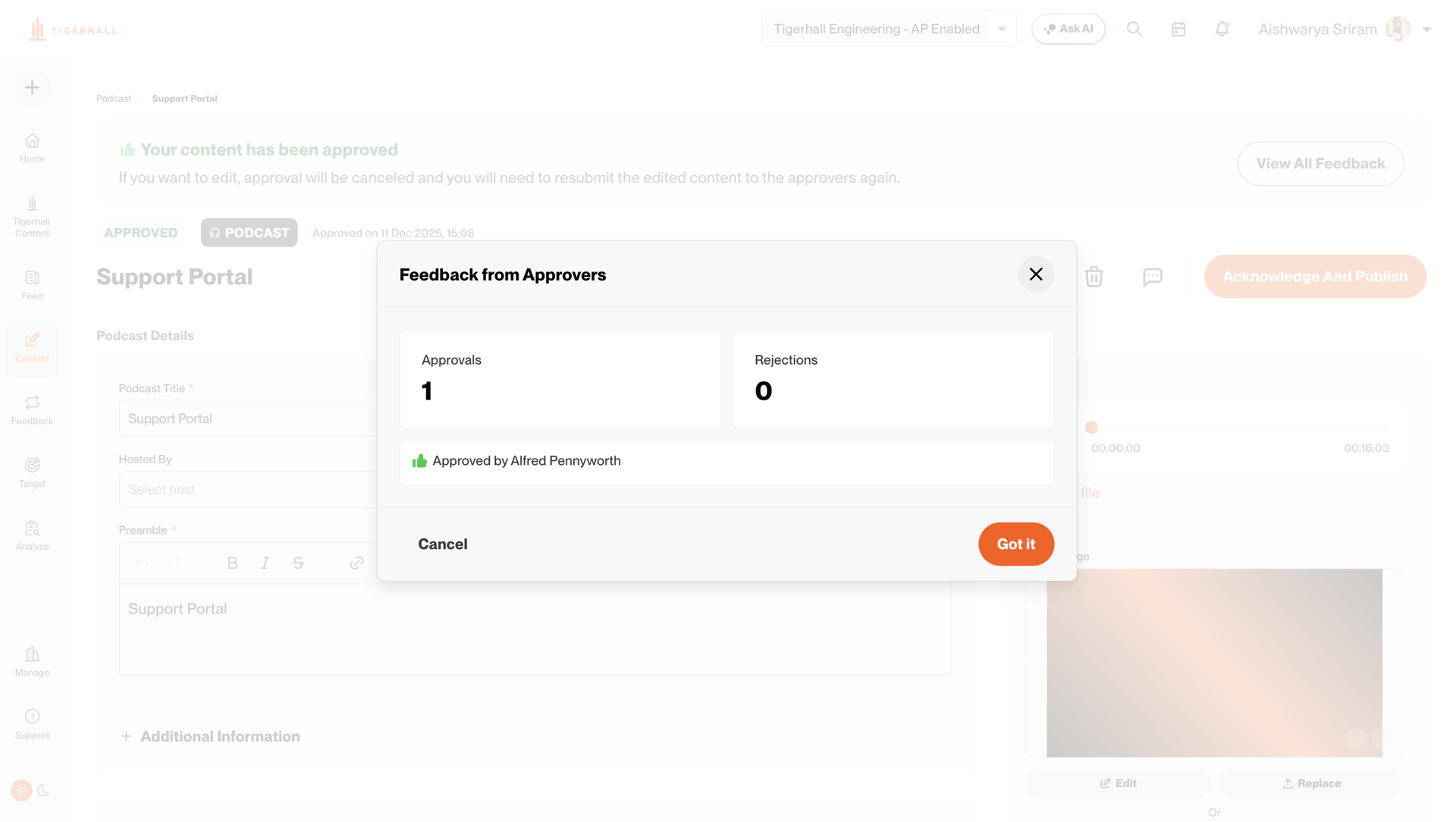
To view approver comments, go into the content piece you have created in the Admin Portal. Click on the comments icon to view the approver’s feedback in the Comments section.
As a content creator, how do I know if my piece has receieved approval from all selected approvers?
You can use the status column to find out those pieces that have been approved/rejected. You will also receive a notification when the content has been approved or rejected.
Can draft content be shared with people outside of the assigned group for feedback?
Draft content can only be viewed by the following roles:
Organization Admins
Global content creators
Topic-level content creator (provided they have creator rights to that draft content topic)
Can we track changes and publishing across multiple contributors?
Yes, you can use the audit log to track the statuses of each content. You will be able to track when:
An approval was requested
The content was approved
The content was rejected
Do edits to published content trigger the approval flows?
No, editing content that has already been published doesn’t trigger the approval flow.
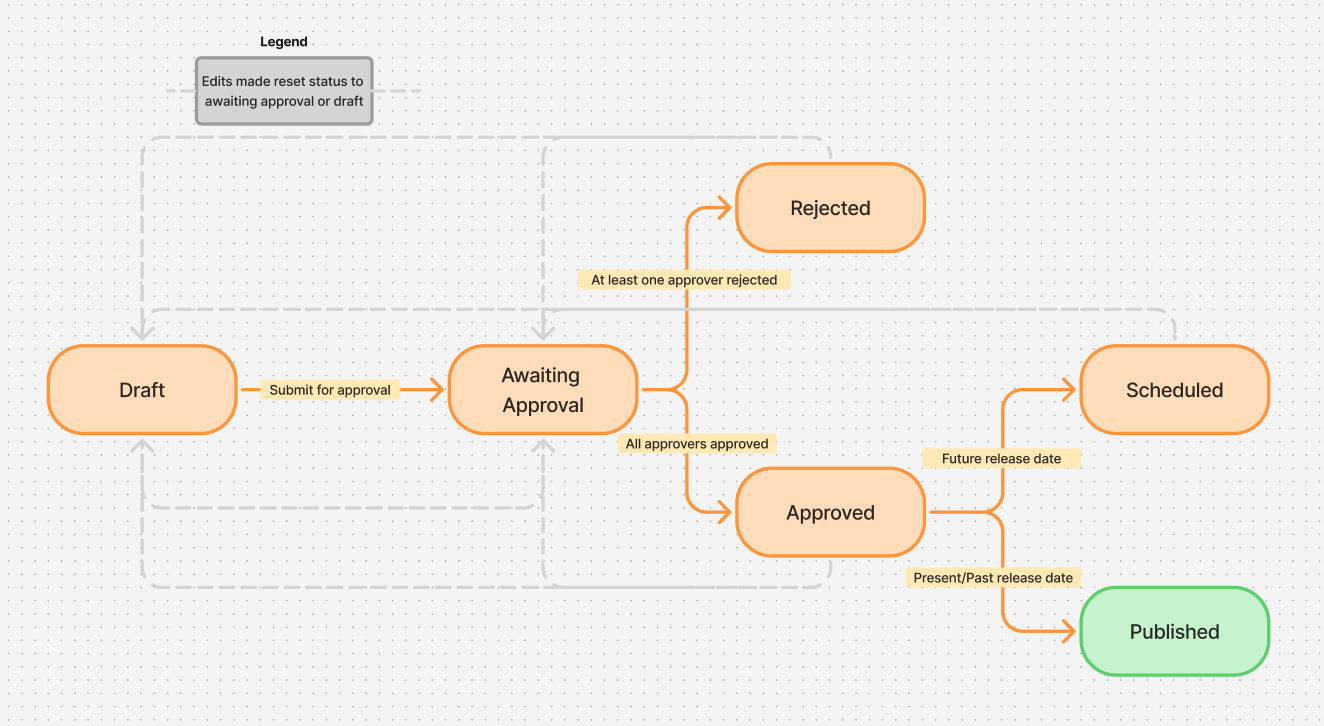
What is the flow of content across different statuses with approval flows turned on?
What is the flow of content across different statuses with approval flows turned on?
Draft
The initial state of the content is draft.
All content pieces can be saved as a draft for review later.
Awaiting Approval
Content reaches this state upon sending the request for approval from the selected approvers. It will remain in this state until any approver has provided their approval/rejection.
Any changes made to the content or the fields will re-trigger the approval flows, ie, your content will move back to the Awaiting Approval status (or Draft if you click on the save icon). You will thus need to re-request approval for the changes made to the content.
Approved
Content reaches this state when it has been unanimously approved by all selected approvers.
Any changes made to the content or the fields will re-trigger the approval flows, ie, your content will move back to the Awaiting Approval status (or Draft if you click on the save icon). You will thus need to re-request approval for the changes made to the content.
Rejected
Content reaches this state when it has been rejected by at least one of the selected approvers.
Any changes made to the content or the fields will re-trigger the approval flows, ie, your content will move back to the Awaiting Approval status (or Draft if you click on the save icon). You will thus need to re-request approval for the changes made to the content.
Scheduled
Content reaches this state once it has been approved, acknowledged, and published for a future date.
Any changes made to the content or the fields will re-trigger the approval flows, ie, your content will move back to the Awaiting Approval status (or Draft if you click on the save icon). You will thus need to re-request approval for the changes made to the content.
Published
Content reaches this state once the Release Date is reached.
Release date and approver fields cannot be updated.
Podcast audio files and the raw video files cannot be changed.
Any changes to the remaining fields on the page will not re-trigger approval flows; you will simply update the content with the edits made.
For AI content, you will not be able to go back to Step 2 to edit and revise content.
Please note, we have an exception for broadcasts. Since this content type is not visible to the end user, we don’t have a release date for it. Thus, it will permanently stick to the “Scheduled” status once you publish the content. Any changes made to the broadcast will not re-trigger the approval flows.
Can we require approval only for some content types, user groups or creators?
No, once approval flows is turned on for your organization, it applies to all content created in Tigerhall. It cannot be limited to only certain content types, topics, or users.
Can we set different approvers by topic or audience?
No, approvers are managed centrally from the Access Levels page in the Admin Portal. Who can approve is controlled through permissions, not by content topic.
What happens if approvers don’t approve for a long time?
The content simply stays in Awaiting Approval until they review it. Nothing is automatically approved or rejected.
Can we reassign approvers mid-approval?
Yes. Approvers can be added or removed anytime before the content is published. If you decide to change the approvers list mid-approval:
Approvals/rejections will be reset.
Content will move back into draft status.
When is a content piece considered approved?
A piece is approved only when every selected approver has approved it.
For example:
If there are 3 required approvers,
All 3 must approve
If even one rejects, the content moves to Rejected
After edits, you must request approval again (earlier approvals will be reset)
What if release date has passed before approval completes?
The content will follow the release date that was originally set when approval started. If this is no longer intended, the content creator must adjust the release date and request approval again.
What are the changes to the content creation workflow with approval flows turned on?
With approval flows turned on, the following changes are made in the content creation workflow:
A new field called Approvers will appear on the content creation page for you to choose approvers for the content being created.
Content is not immediately published; it will require one or more rounds of approval.
The remaining fields to fill out remain the same.
What happens to existing content once content approval workflows is turned on?
Any AI content that is in “Draft” status will now require approvers to approve it prior to publishing.
Any edits made to existing content in the Scheduled status will now trigger the content approval workflow.
All existing content in the Published status will not be affected by content approval workflows.
What notifications are sent out for content approval workflows?
Sent to Approver:
An approval was requested.
Every 3 days, a reminder notification will be sent for content pending approval.
Sent to the Content Creator:
The content was approved.
The content was rejected.
Can I turn off approval flows on Tigerhall?
Once turned on, approval flows cannot be disabled at the admin level. However, if you would like to turn off approval flows in Tigerhall, please get in touch with Tigerhall’s Customer Success representative or write to us at support@tigerhall.com.