Topics/Initiatives Structure on Tigerhall
Last updated: March 2, 2026
Overview
A new topics and subtopics structure has been implemented to improve how content can be organized and accessed throughout Tigerhall.
Summary of changes:
A tree-like organization of topic structure has been implemented with up to five levels of subtopics
Organization topics can be accessed through the home page pill buttons
Subtopics will be housed and accessed through their parent topic or subtopic
Content can be ‘tagged’ against this structure
Content can be tagged to one or multiple topics, depending on the organization’s needs
Access restrictions can be set for topics and subtopics so that only certain user groups can see the content tagged to that topic or subtopic.
This document outlines the changes in detail and how the topics' structure will be transitioned to replace the previous structure.
Please note that during the transition to the new topics structure, we have an important step for you to complete within your company. Find more about this at the end of this document.
Find a downloadable resource here:
Key Access Points and Structure Charts
In Tigerhall, you can control access to content in three ways:
Adding topics and groups during the content creation.
Adding topics and groups during trail creation.
Creating actions.
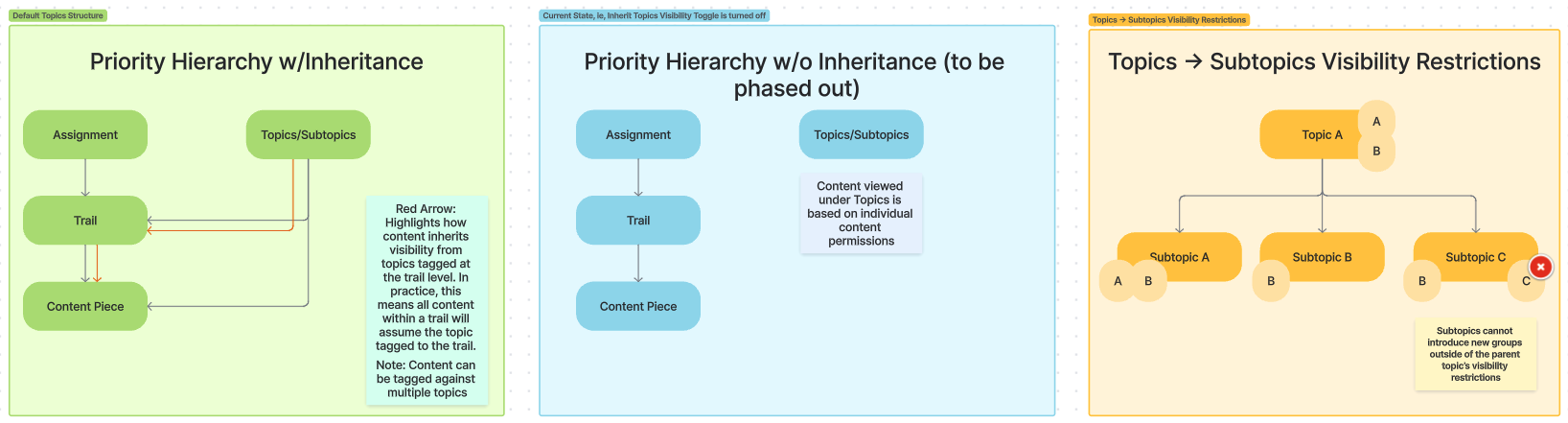
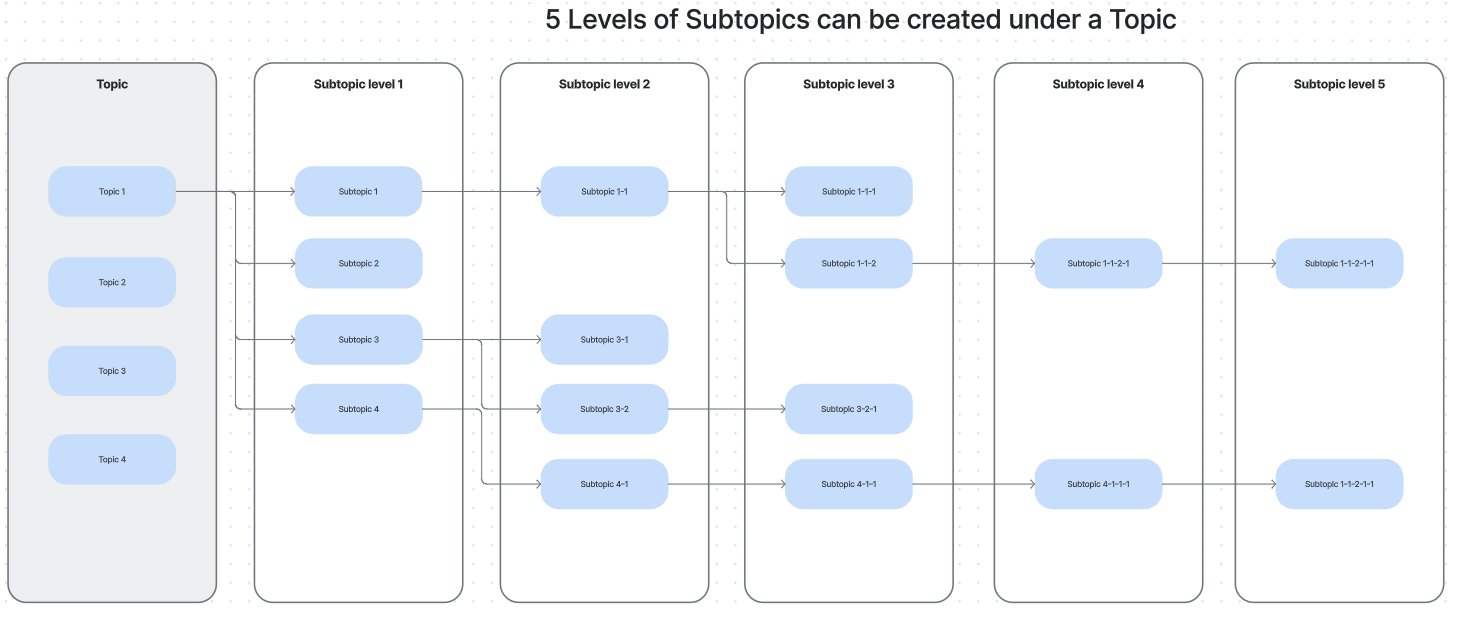
General Notes
Enhance discoverability by tagging multiple topics to trails and content.
Organization content can only be tagged to organization topics or subtopics.
Access restrictions can be set for topics and subtopics. If no access restrictions are set, the topic and the content tagged to that topic will be visible to everyone in your company ('All Users in Organization' will be displayed in the access reference).
All new organization content follows the access of its tagged topics/subtopics by default
You can extend access by adding additional groups to the organization content in the ‘Access Restrictions’ section.
You can also choose not to follow the access of its tagged topics/subtopics and override content access in the ‘Access Restrictions’ section.
Want different groups to see different content under the same topic? Create subtopics with tailored access restrictions for segmented communication.
Rules for Access Restrictions on Content
Actions
Users or groups assigned to an action can access all its content, even if individual content pieces have different access restrictions. This is to ensure all users can complete an action.
Example: If Content A is visible to the Marketing group and Content B to the Product group, but both are included in action C (assigned to the Sales group), the Sales group can now access Content A & B through the action.
Topics
A topic’s access restrictions apply to all trails and content within it.
For the transition period between the old access restrictions structure and the new one, we are creating a toggle that impacts this status. Understand the Inherit Topics Access Restrictions Toggle below.
Example: If “CEO Communications” is visible to everyone, but certain content should be restricted to the Leadership group, create a subtopic like “Leadership Knowledge” and tag that content there. This allows for segmented access while preserving the overall topic structure, ensuring knowledge is shared securely without compromising confidentiality.
Subtopics
Subtopics inherit their parent topic’s access restrictions and only allow restriction removal, not addition.
Example: If Topic A is visible to the Product and Engineering groups, Subtopic A can be visible to either or both, but new groups cannot be added. To include a new group, the parent topic must also be visible to that group, ensuring seamless discoverability.
Inherit Topics Access Restrictions Toggle
All organization content created takes the access restrictions from the topics/subtopics it is tagged to.
The default state for any new content being created will be option 1 mentioned below. (For existing content and trails, this toggle is turned off, meaning content will not automatically inherit access from its topics.) If your current visibility structure does not match that, we highly recommend that you go through the information below and restructure the visibility of the content in your company.
We provide you with two ways of managing a content’s visibility to a select audience based on your goal for the content piece:
Inherit toggle turned on (+ Additional Access if required) default option
This implies that the content’s visibility follows the topic’s visibility. For eg, if a topic is visible only to the “Leadership Group,” then the content will also be visible only to the “Leadership Group.”
We provide you with the option to add additional access groups if required. For eg, following the above example, let’s say you also want to add “Middle Managers Group” to the content being created. You can add this group to the Additional Access section. This makes the content visible to the “Leadership Group” (via topic) and the “Middle Managers Group” (via the content piece/link shared/search).
Inherit toggle turned off + Override Access
This implies that the content’s visibility does not follow that of the topic. For eg, if a topic is visible to “Product Group,” this group will not be able to access the content piece.
We provide you with the option to override access for the content piece in such a scenario. For eg, following the above example, you want the piece you are creating to only be visible to the “Product Marketing Group” and no one else. You can then uncheck the inheritance toggle and add the product marketing group in the Override Access section. This makes the content visible to only the “Product Marketing Group” (via the topic/search/content piece/link shared) and no one else who visits the topic.
Thus, if your goal is to manage the entire visibility structure of content created via the topics structure, we recommend option 1. Remember, option 1 allows you the flexibility of adding additional access that goes beyond the access brought forward by topics. If you would like to create content within a topic that’s only visible to a specific group and no one else, go for option 2.
To-do for Clients during this transition
Access Restrictions settings - check content access using the ‘Access Restrictions’ Panel
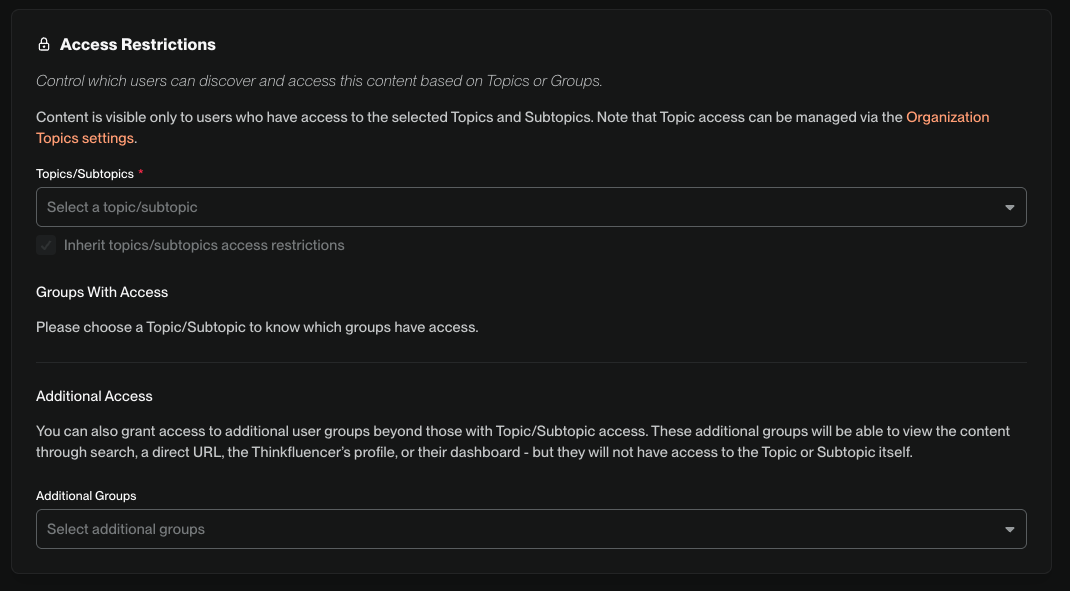
Check Trail Access Restrictions - ensure the intended access is restricted for trails via the ‘Access Restrictions’ Panel. Once checks are completed, the below will be implemented:
Trails
Users or groups with access to a trail can access all its content, even if individual content pieces have different access restrictions. This is to ensure all users can access content within a trail.
Example: If Content A is only visible to the Sales group and is added to Trail A (visible to Product group), Content A will now be accessible to both Sales and Product groups through the trail.