Statistics
Last updated: February 26, 2026
This page is the support space for your queries regarding the Tigerhall app consumption of your organization’s users and groups in terms of their progress on their learning journey with Tigerhall.
The Statistics page in the Admin Portal highlights various metrics that help you dig deeper to understand learning trends and historical data of users in your organization. You can access this through the left navigation bar on the Tigerhall web app. Please note that the admin portal is only available via web access.
In this section, you can view statistics related to the organization, content consumption, and actions.
Some caveats to keep in mind when using the statistics page:
The selected time period applies to all the statistics on the page except for the three tiles that lie above the filters. These show data from when the organization was created till the current time.
This page is data-heavy and some tables may take time to load. Don’t worry it’s not an error on your end!
You can click on any row in a table and it will lead you to the relevant page as the first column:
Clicking on an action data row → action detail page
Clicking on a user data row → user page
Clicking on a group data row → group page
You can do so for tables in the Statistics Page & Manage Users & Stakeholder Groups Page
How can I read the tables on this page?
Watch these short videos to learn how to read the Statistics Tab:
For an in-depth explanation of each section, continue to read below:
Statistics Filter
Using this filter on the top of the page will affect all tables on the statistics page until the “Action Statistics” table and narrow down the data for the desired group(s) and date range.
Most often you will look at reports for a specific group of users. Use this feature to see the data you are interested in.

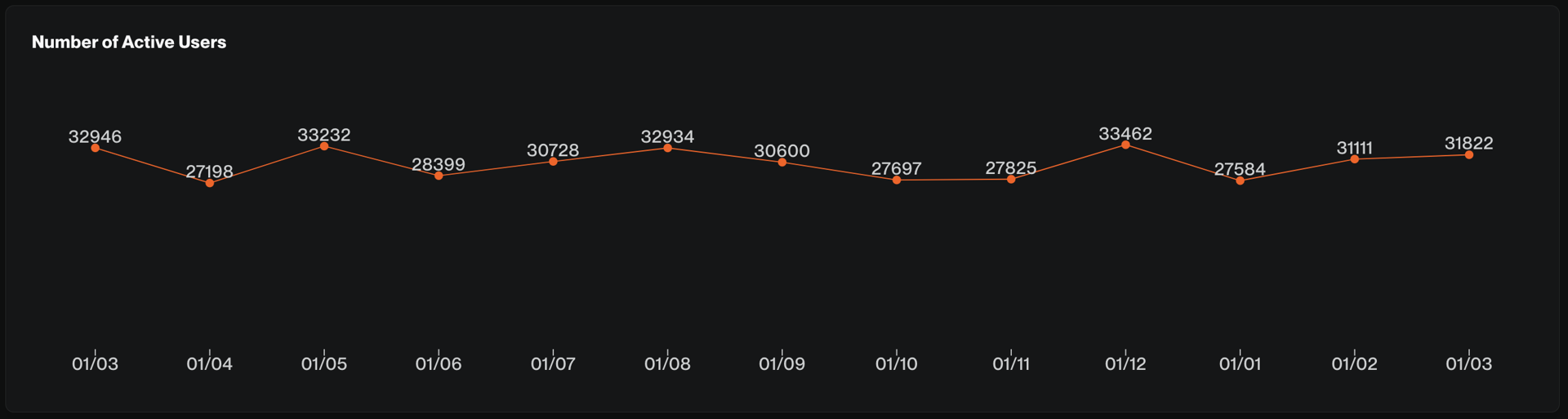
Number of Active Users
The user needs to log in to the app to qualify as an active user. Do keep in mind that users aren’t expected to log in daily to be successful hence expect this number to be lower than the total user count in the group.
Keep an active eye on this, especially during the first-month post-launch to drive adoption and guide your users to create a habit
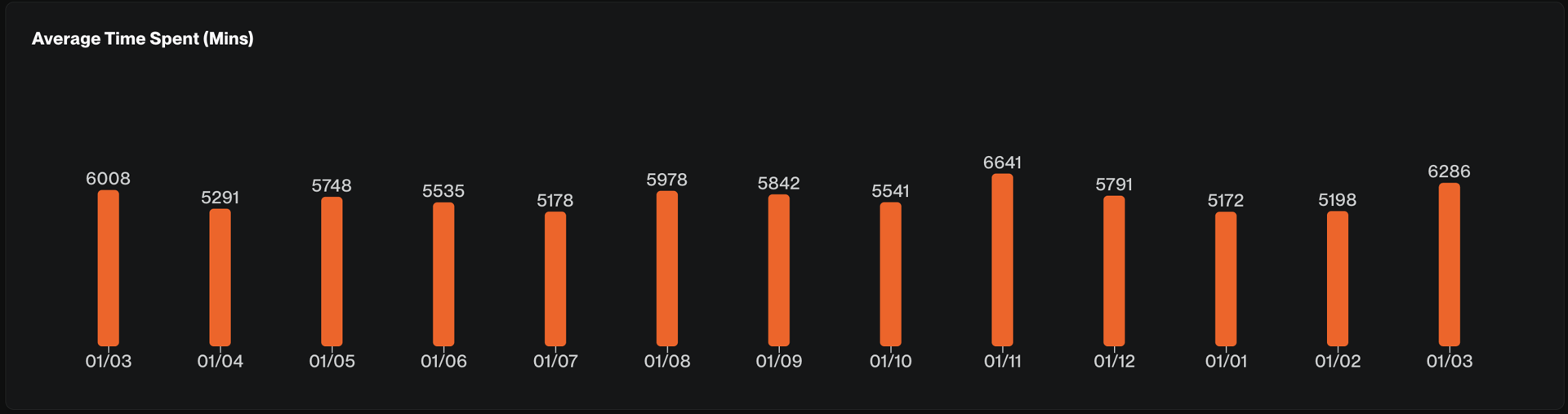
Average Time Spent (Mins)
This chart represents how much time on average an active user spends in the app. Tigerhall weekly time spent benchmark is around 30 min per user per week.
Remember that we are going for bite-size content pieces of 5-10 minutes a piece. Our goal is not to have users spend hours every week but to spend this time wisely on the best content.
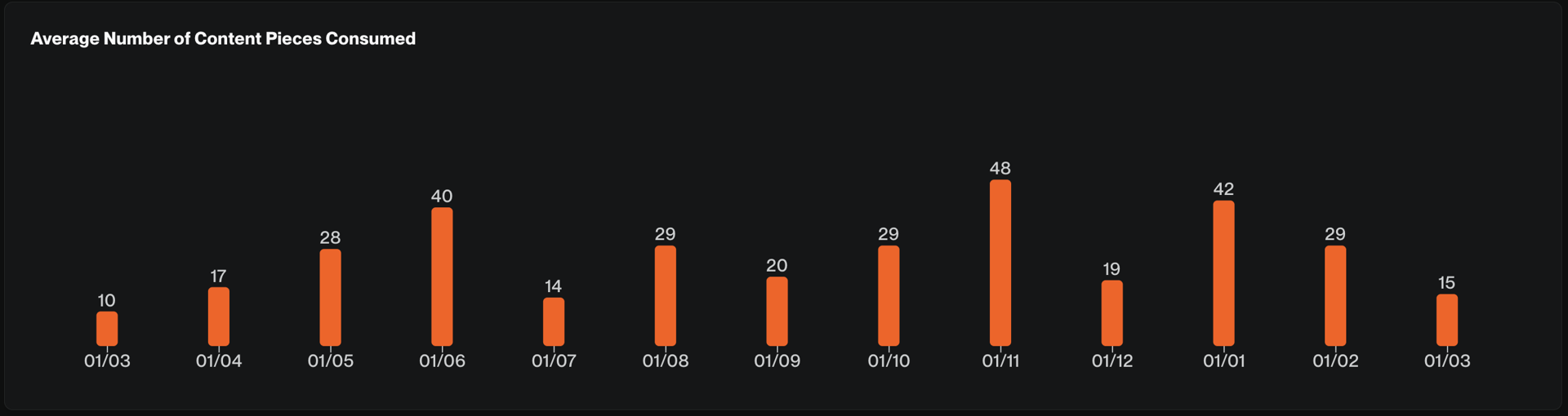
Average Number of Content Pieces Consumed
This chart represents how many pieces of content active users consume on average.
If there is a continuous downward trend you might consider revisiting content selected for your user group. Do reach out to your Tigerhall Customer Success Manager for suggestions.
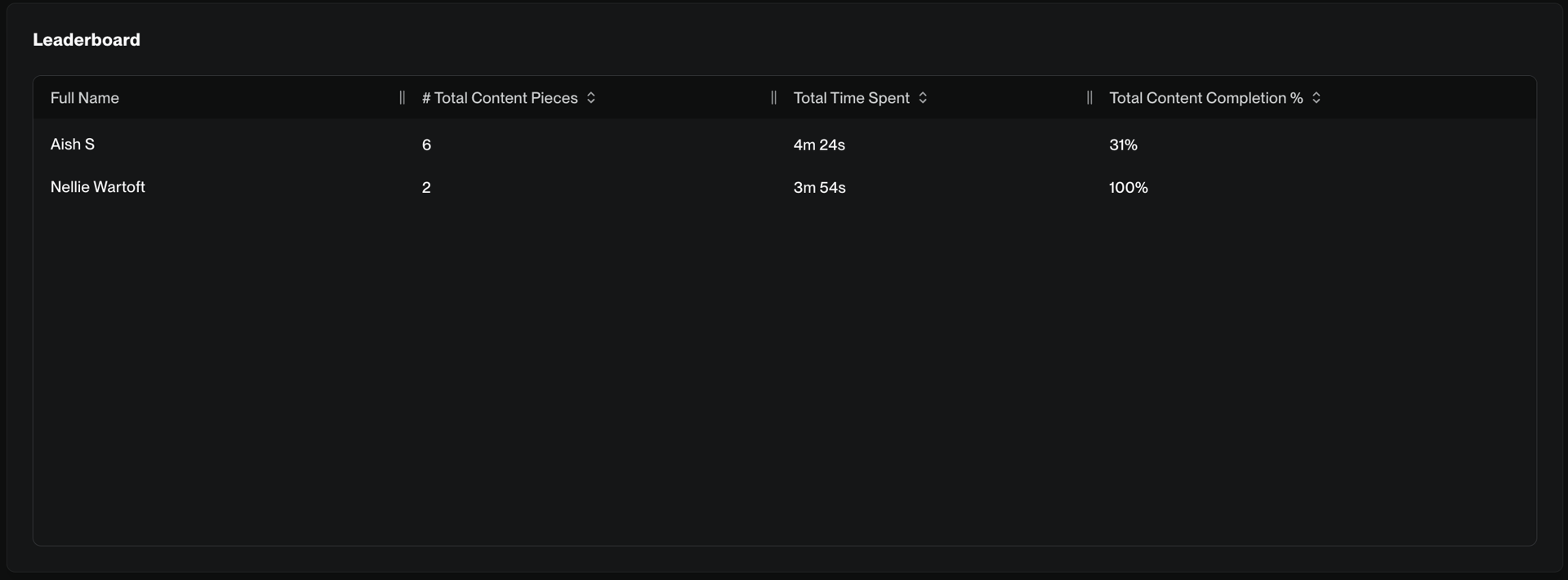
User Leaderboard
This table shows the top 10 users in your organization/organization group.
Total time spent - This number is affected by the time period filter on top of the page
Total content completion - This represents how much of the assigned content was completed by the user. The number is affected by the time period filter as well.
Leaderboards are a very powerful tool to engage users. Share with the team, give rewards and spotlight to top users to motivate others!
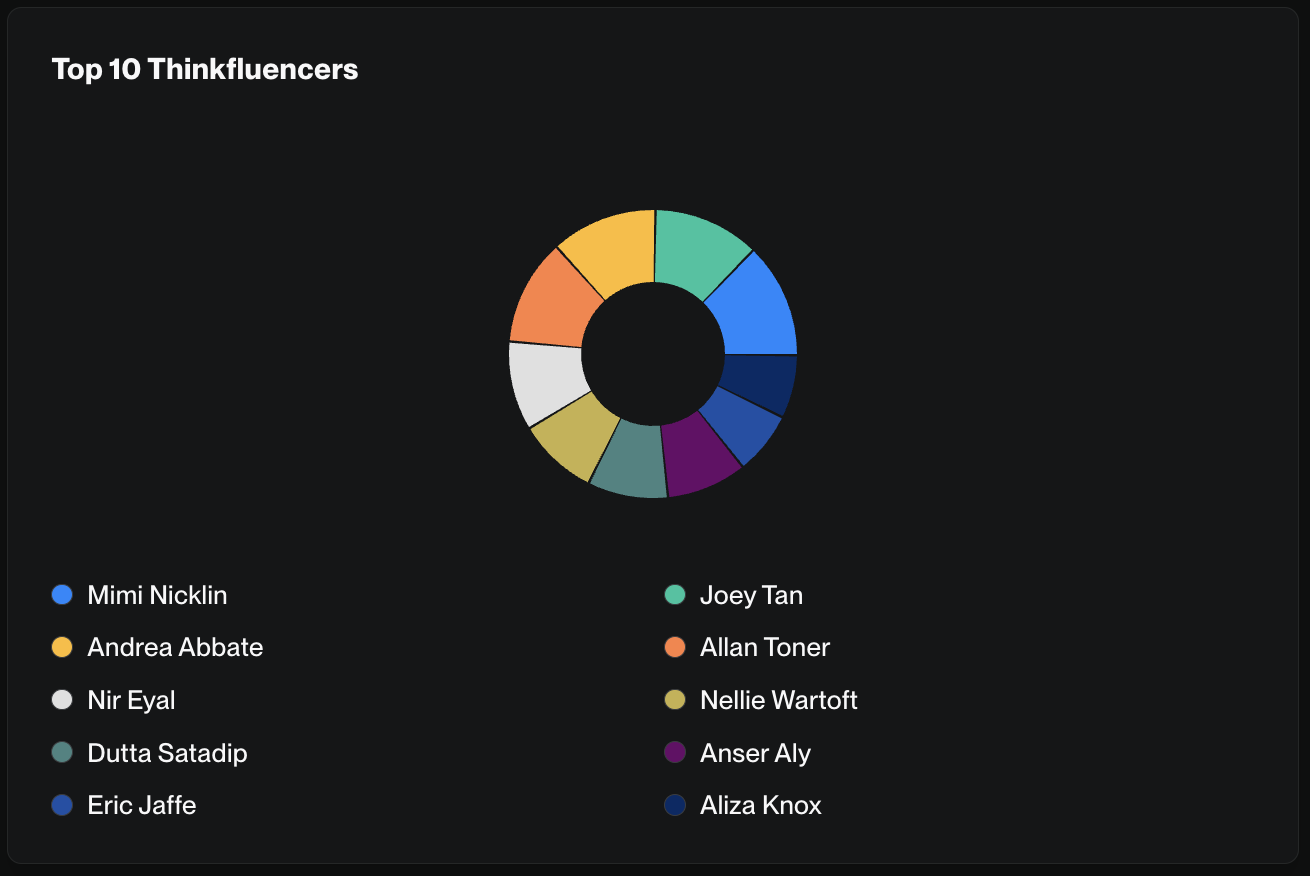
Top 10 Thinkfluencers
Every content piece in Tigerhall is tagged to a respective author. This could be a Tigerhall Thinkfluencer or your organization's internal leader who has produced content for Tigerhall. This table represents the most viewed authors.
Watch this space to understand what thought leaders are popular with your users and reach out to our team if you would like to get more content from this expert or even book a customized session for your organization.
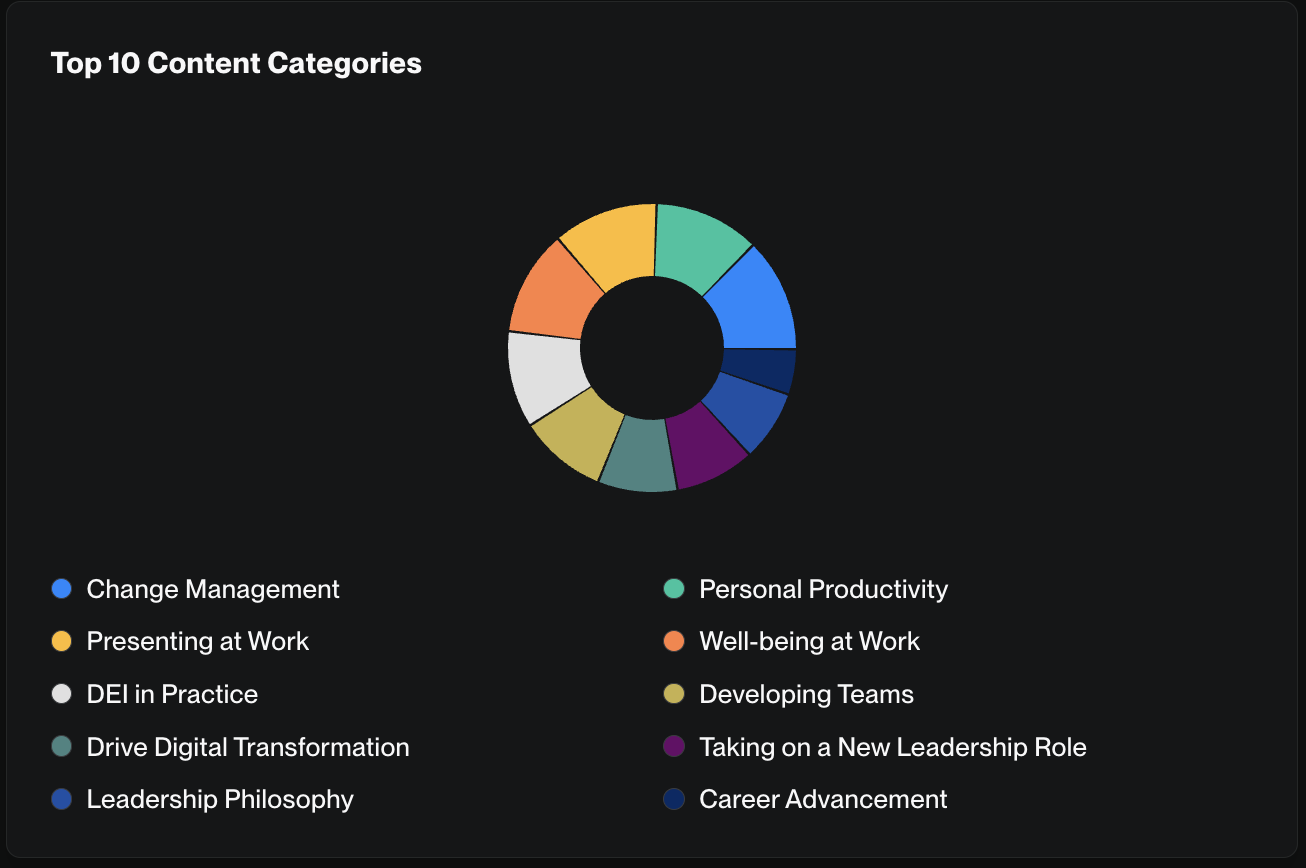
Top 10 Categories
Every content piece in the app is tagged to a category. This chart represents content that your users explore both within assigned content and all other content across the app.
Watch this table to analyze what your users are exploring. If your team is looking for content on conflict & workplace issue management that could signal that your team needs support. If you see a lot of interest in leadership development this could signal an opportunity to curate a special trail for your team to support the growth.
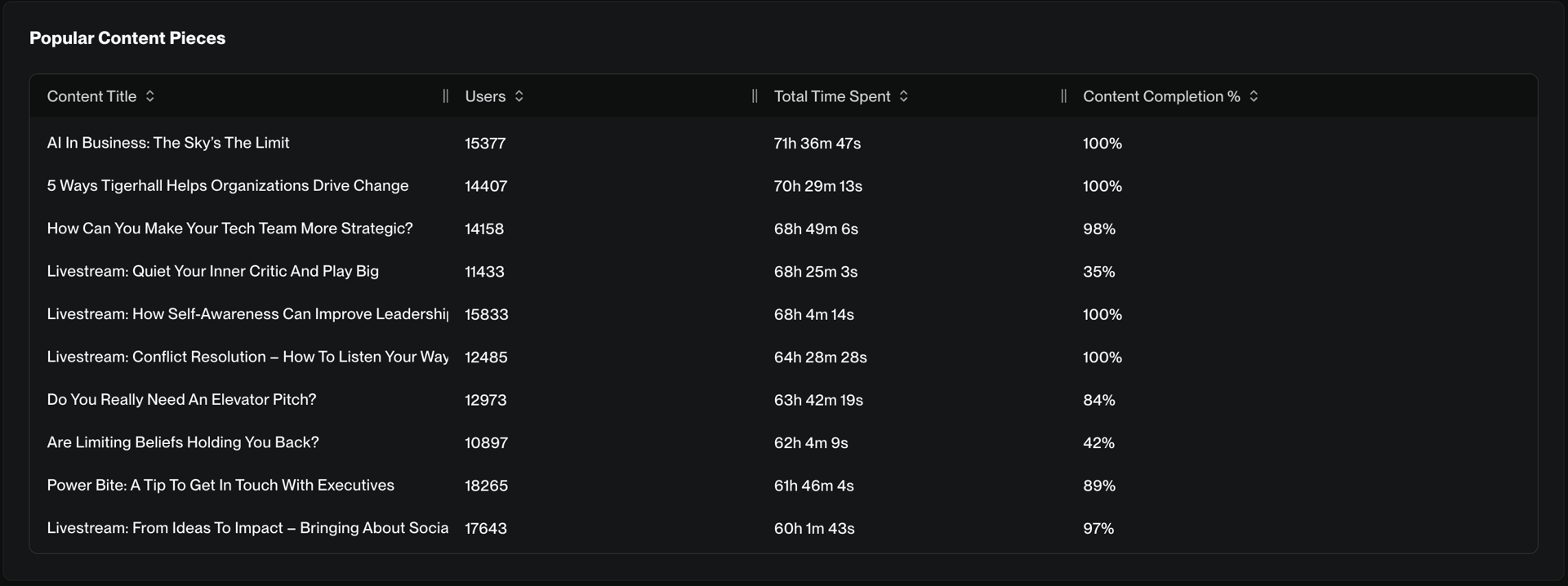
Popular Content Pieces
Similar to Top Categories this table represents what your users are interested in. This could be within or outside of the assigned content
Number of users - How many people completed this piece
Total time spent - How much time they spent on this content
Content completion percentage - How far did users get in this piece
💡Some content will always resonate better than others. Look at this chart to analyze if the content you have picked for your users works well. Highlight popular pieces for users who are still not active to encourage FOMO and join others in the app
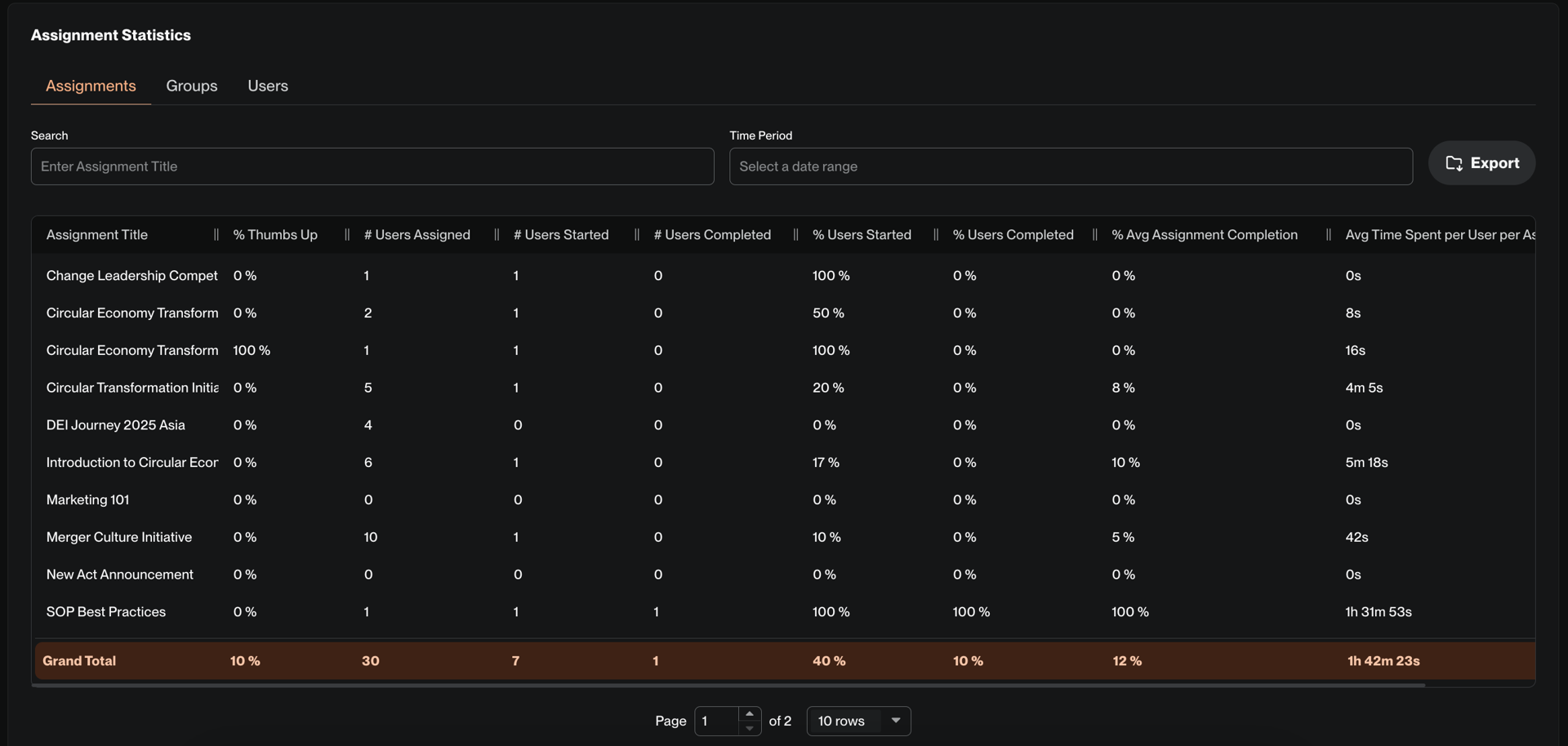
Action Statistics
The action Statistics section is split into 3 tabs. You can use the search field, organization group, and time period filters for a more detailed analysis as well.
Actions
This section gives you specific action-level consumption & completion data. The action name is set when an action is created by your org admin or Tigerhall team. actions may include multiple trails / content pieces and be assigned to multiple users or user groups.
2. Groups
This section shows group-level action consumption & completion data. Every user group can be assigned multiple actions. Use this view to analyze specific departments/teams' progress.
3. Users
This section shows user-level action consumption & completion data. This could be helpful for team managers to understand every specific user’s progress. You will see a detailed breakdown of user activity.
Where can I view individual user statistics?
You can also view individual user data on action consumption and completion. To view follow the steps below:
Go to the individual user's page
Scroll down to the end of the page to view the data table
You can use the search field and action status dropdown for a more detailed analysis as well
You have the option to hide inactive actions from the data
This is a good way to see individual user learning journey. Managers can use this report with their teams to see their development progress. The report can be exported
Can I see action specific statistics for every user assigned?
You can find user-level statistics for every content type in an action on the action page from the Admin Portal. Check out this short video to learn how:
Can I export the raw data on this page? If so, how can I export it?
We provide you with three options to export the above statistics:
The entire statistics data until the action Statistics section - This includes data in all the tables until the action Statistics section, including the filters you have applied
The action Statistics data - This includes data on all the tabs under the action Statistics section, including the filters you have applied
Individual user statistics - This includes all the user consumption data, including the filters you have applied
Actions Statistics from the action Page - This includes user-level action consumption data for every content type in the action.
Please note that the format for the export file is an Excel spreadsheet with each sheet providing you with raw data for each graph/table
If you face an error while exporting the file:
Please refresh your browser and try again
Try signing in and out of Tigerhall and try again
Clear the cache in your browser and try again
Contact support: https://tigerhall.atlassian.net/servicedesk/customer/portals