Manage Users
Last updated: February 27, 2026
The Manage Users page lets you view, add, and manage users in the organization. You can access this through the left navigation bar on the Tigerhall web app.
This page will help you navigate through your organization’s users. The Manage Users page in the Admin Portal gives organization admins access to all these functions including editing user profiles, adding users, removing users, and viewing pending invitations sent out to existing users.
You can click on any row in a table and it will lead you to the relevant page as the first column:
Clicking on an action data row → action detail page
Clicking on a user data row → user page
You can do so for tables in the Statistics Page & Manage Users & Stakeholder Groups Pages.
How can I setup SSO for my team?
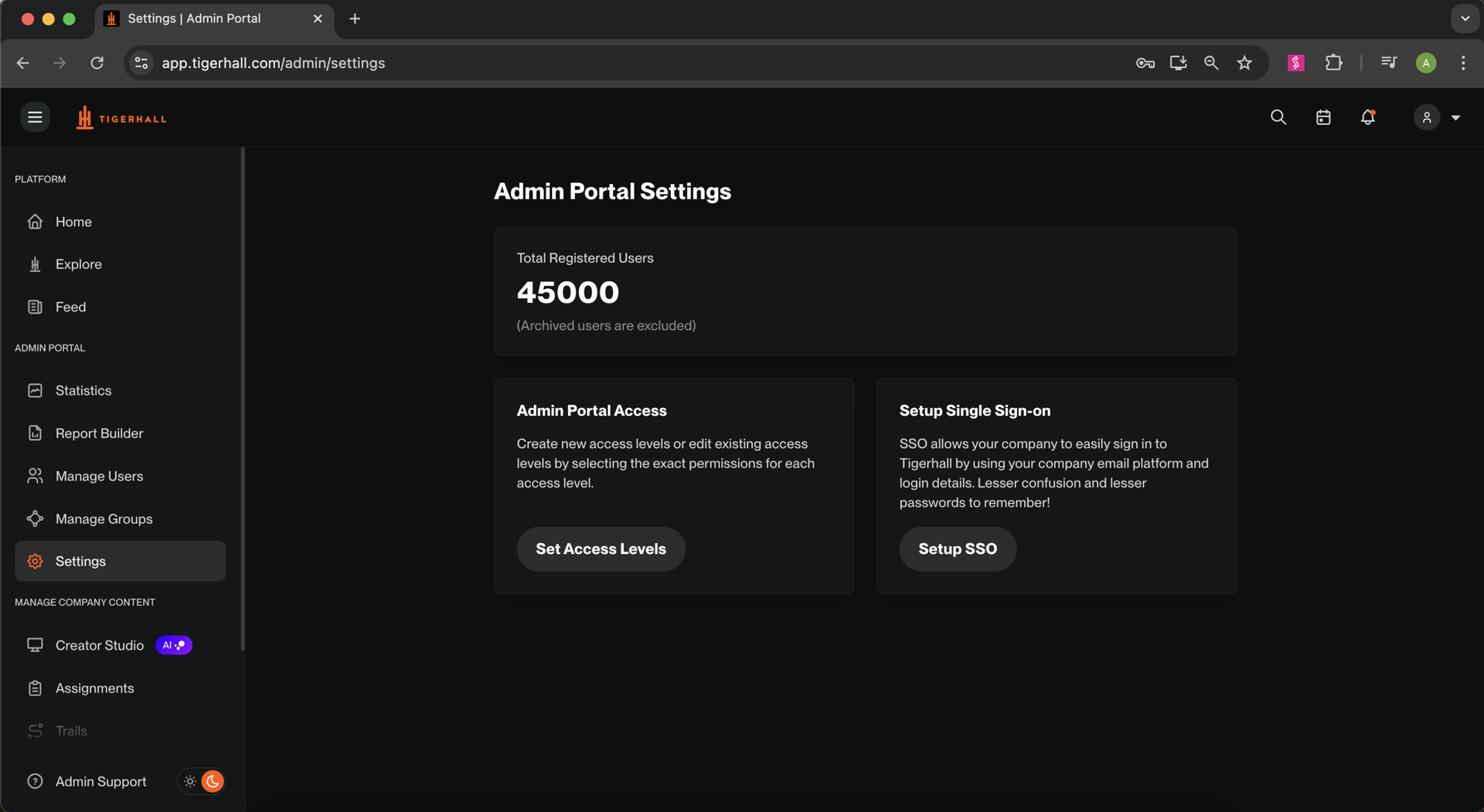
Follow the steps below to set up SSO for your team:
Go to the Settings tab in the left navigation bar
Click on Setup SSO
Using SSO enables better and more secure access for your users. Additionally, our research shows that 92% of users who forget their login information will simply leave the site instead of resetting their password! So make sure you have SSO in place to drive the learning efforts!
You can only set up SSO if your team has over 10 members
How do I add users to my organization?
We provide three methods of adding users to an organization. The steps for each of them are listed below:
Import CSV
Download the sample CSV file
Fill out this file in the given format with your team’s information
Upload this file
Adding Single User
Fill out the user details and click the Add button to add them to the organization.
Adding Users by sending an invite link
Copy the invitation link and send it to users you want to add to the organization. They will receive an email to accept your invitation to your organization.
What are the user statuses?
We have three user statuses:
Enabled: A user with this status has their account access enabled from Tigerhall's side. This status does not differentiate between those who have logged in or not.
Archived: A user with this status does not have access to the platform. Since the user is not deleted, their access can be restored if needed.
What are the different actions I can take for a user?
We provide the following tools to manage a user:
Delete User
Doing this deletes the user from the organization along with their data.
Add to Group
Please note, that you can only add users to groups that already exist. If you would like more information on creating groups please click here.
Set Access Levels
This takes you to the Access Levels Page, click here for more info on this section
Archive User
To access this feature you must be inside the individual user’s profile.
Click on the archive icon (shown in the screenshot below) to archive the user.
Archiving a user does not remove them from your org. It also hides their data in the Statistics and Report Builder pages.
Edit Information
Provide users with Organization Thinkfluencer status
Provide users with access to livestream within the organization
Edit their profile details and images
Impersonate User (only available to organization admins)
This is a feature that you can use to experience the platform through the lens of a particular user, along with their permissions (if applicable) for 15 minutes.
Please note that Org Admins should not delete users without consultation with Tigerhall as it will impact the historical data connected to the user and the org. Once the user is deleted it’s not possible to retrieve the usage data. We recommend moving the user to a separate archive group. To do this create an Archive group and simply add a user to this group. Follow the naming convention:
[Org name]- Archive - Group Name. For eg: Tigerhall - Archive - Marketing Team
What is a Thinkfluencer?
In Tigerhall, Thinkfluencers are regarded as someone with deep expertise in a field. Only Thinkfluencers are allowed to have content tagged to them. There are many use cases to set someone in your company as a Thinkfluencer:
To showcase their deep expertise in any domain
To highlight a user as a champion/top performer
Remember, when you create content, you will be presented with a Thinkfluencer dropdown to choose who has created the content/whom the content is from. In here, you will only be able to select Thinkfluencers in your company.
How do I give a user Thinkfluencer status?
Go to the Manage Users tab
Search for the user you would like to make a Thinkfluencer
Click into their user profile and click on edit
Once you’re in the edit profile page, click yes on the checkbox that marks a user as a Thinkfluencer
Save the profile
The user will now appear on the platform as a Thinkfluencer with a blue tick on their profile
What is nudge user? How can I use it?
Nudge User - This lets you nudge a user who has yet to log in to their account on Tigerhall. If you nudge a user, they will receive an email prompting them to log in to their account and complete their login process.
You can use two options to nudge users:
You can click on the “Nudge all Inactive Users” button to nudge all the users who haven’t logged in yet
Alternatively, you can nudge a single user by clicking on the “Nudge” button against their status
Keep in mind that you can only nudge users every 24 hours
It is very hard to engage users who haven’t activated the accounts within the first month after launch. This is your prime time to utilize the nudge feature and make sure all users have logged in.
What is impersonate user?
This is a feature that you can use to experience the platform through the lens of a particular user, along with their permissions (if applicable) for 15 minutes. This feature is only accessible to organization admins. To use it:
Go to the Manage Users page
Click on the user you would like to impersonate
Once you go into their profile, click on the “Impersonate User” button.
Please note that all actions you make on the platform will be published as the user being impersonated, and these actions will be recorded in the admin portal as you impersonating the user. For example, if org admin A makes a comment as impersonated user B, it will actually publish a comment as user B in the platform. It will also create a log in the audit log that Admin A commented while impersonating user B.