Account Settings: Preferred Content Language
Last updated: March 2, 2026
Please see the screenshots and step-by-step process to change your preferred language for content in Tigerhall. Please note that this will only translate the content, not the icons/navigation experience in Tigerhall.
You may also change the preferred language translations on the individual content piece itself if you wish to translate to another language than your preferred one.
How to change my preferred language for content translations in Tigerhall
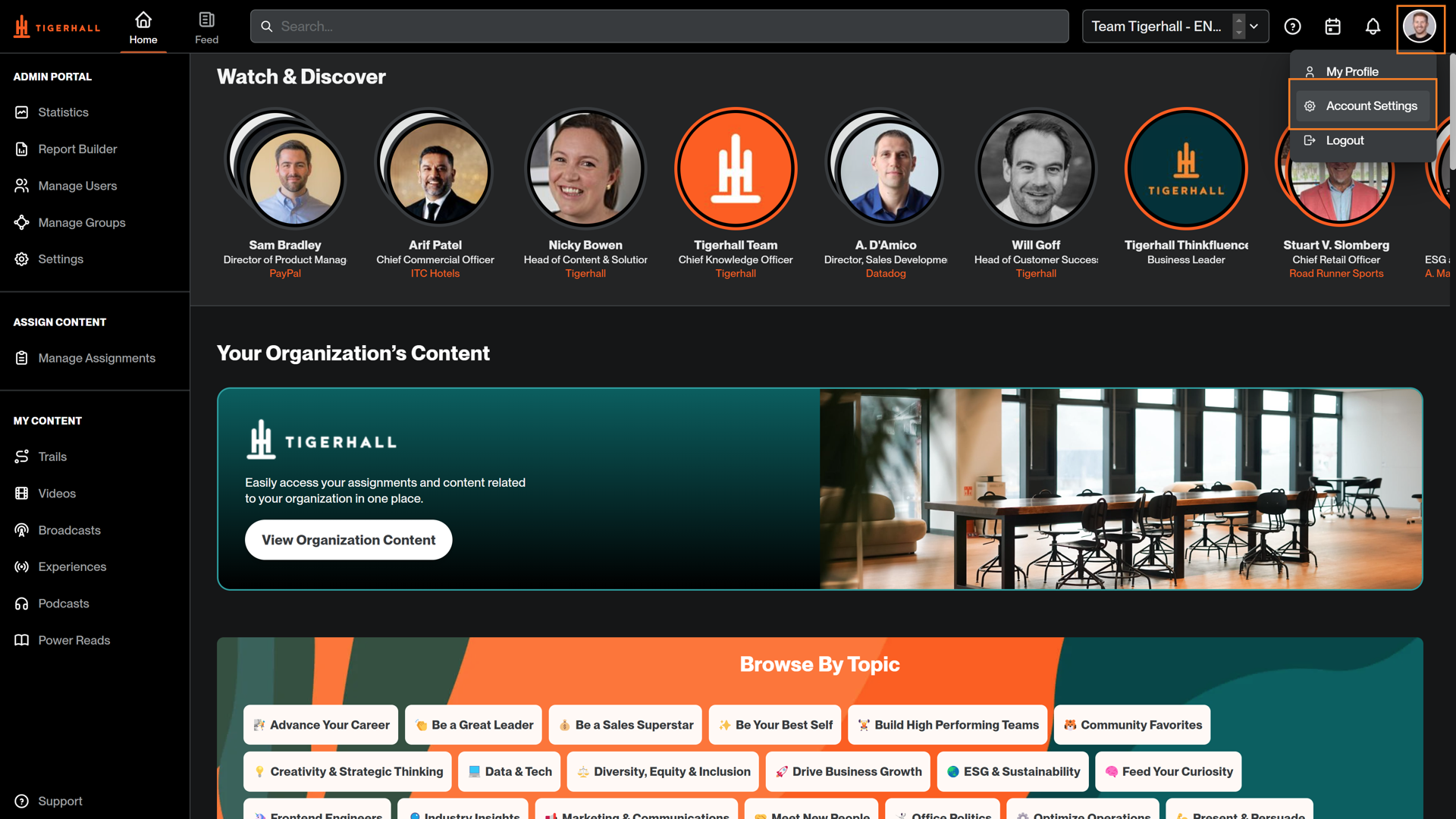
1) Navigate to your account preferences by clicking on your profile.
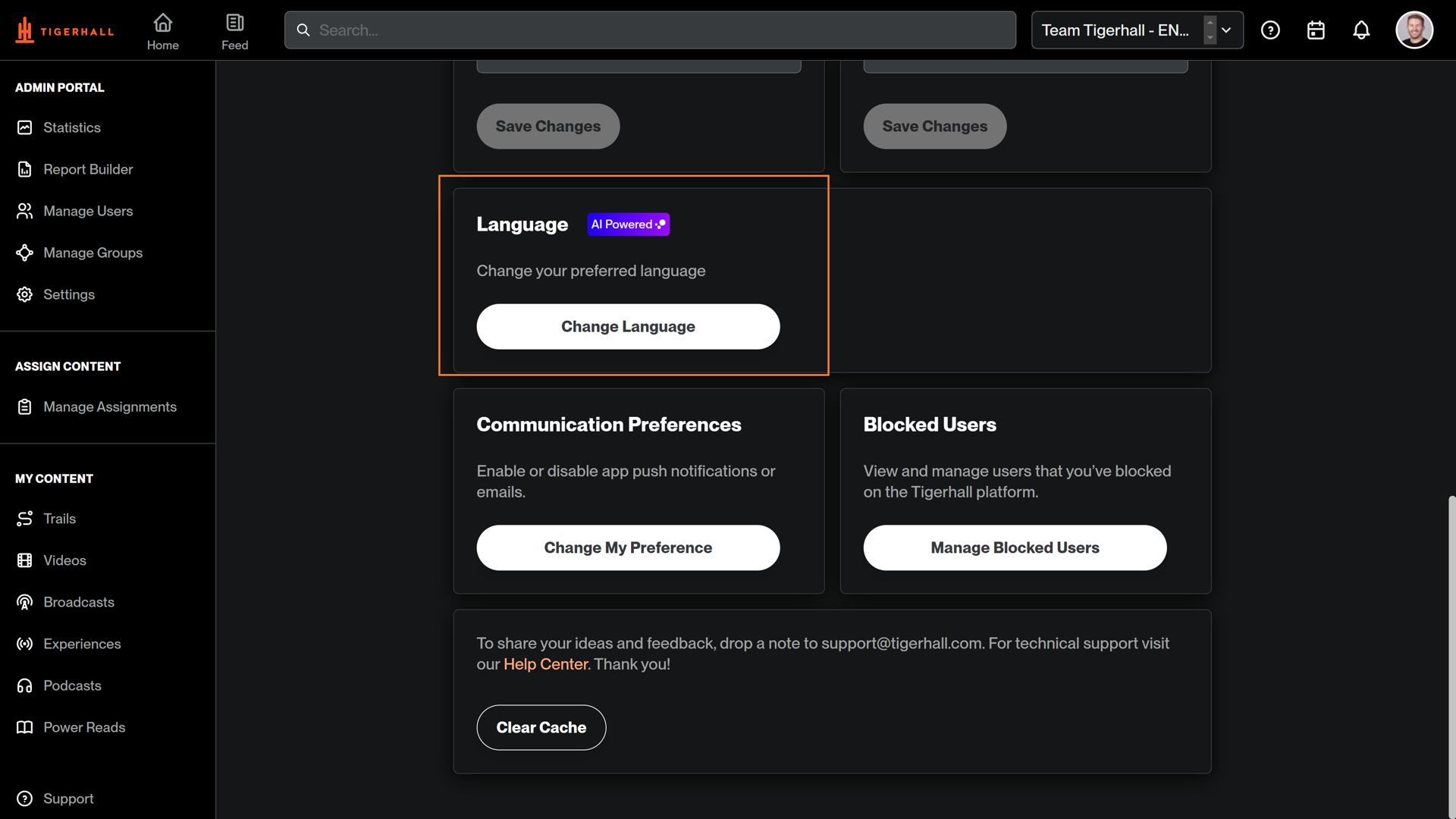
2) Scroll down and select the ‘change language’ option
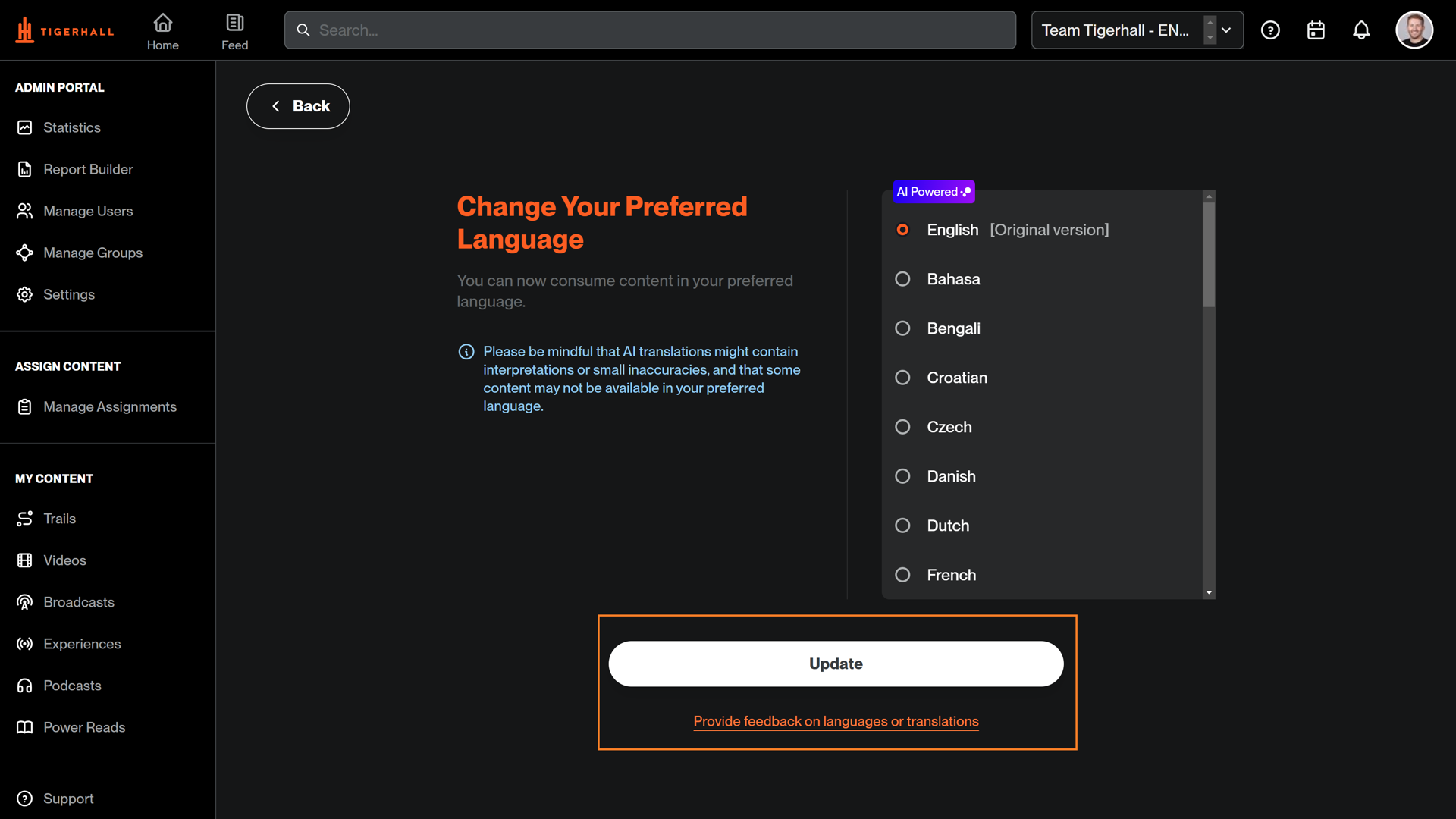
3) Select and apply your preferred language. This will automatically translate content into your preferred language going forward. We encourage you to refresh + re-login after making this change.
How to update my preferred language on the individual content piece
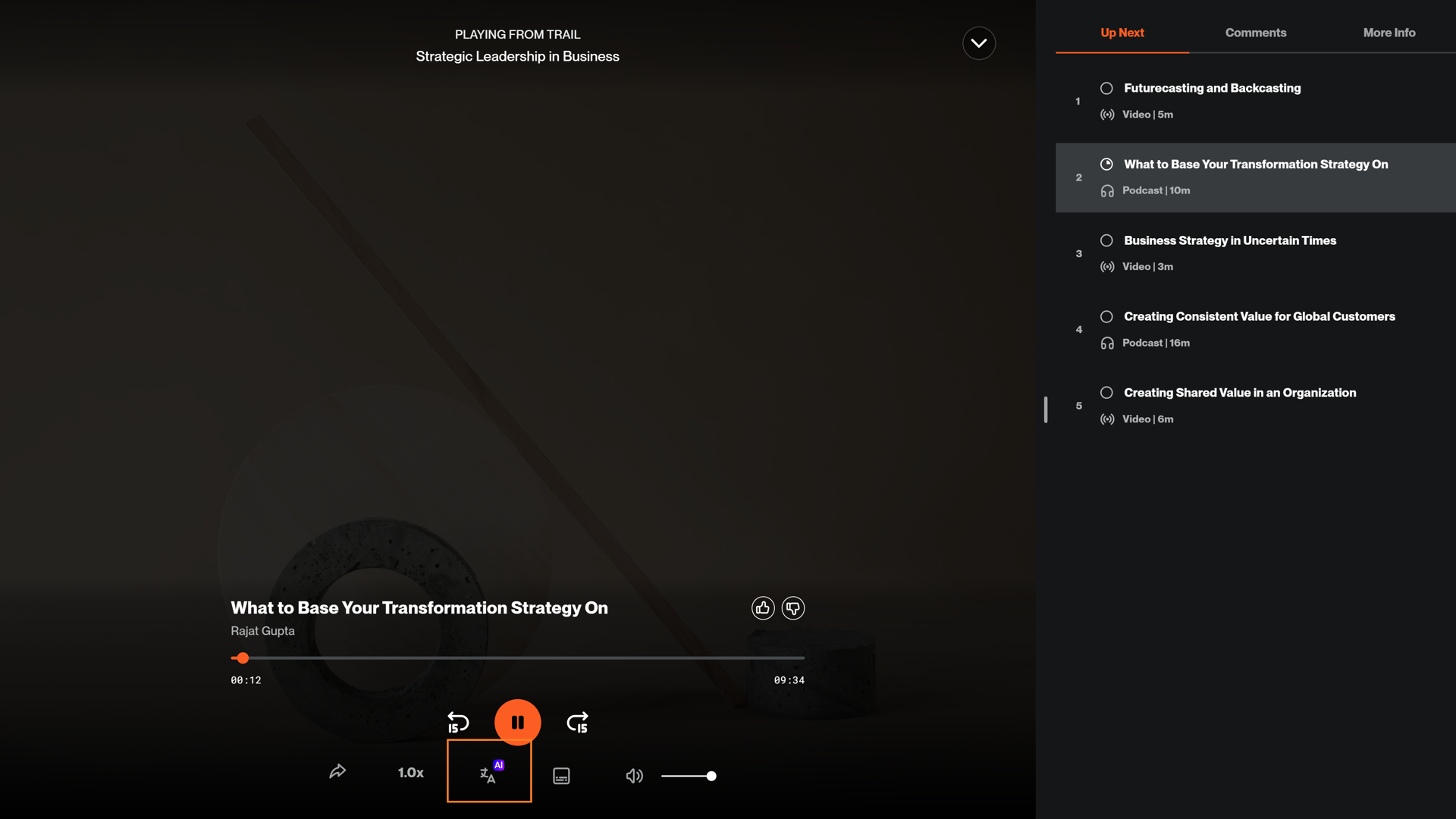
1) On an individual piece of content, click here to change your preferred language
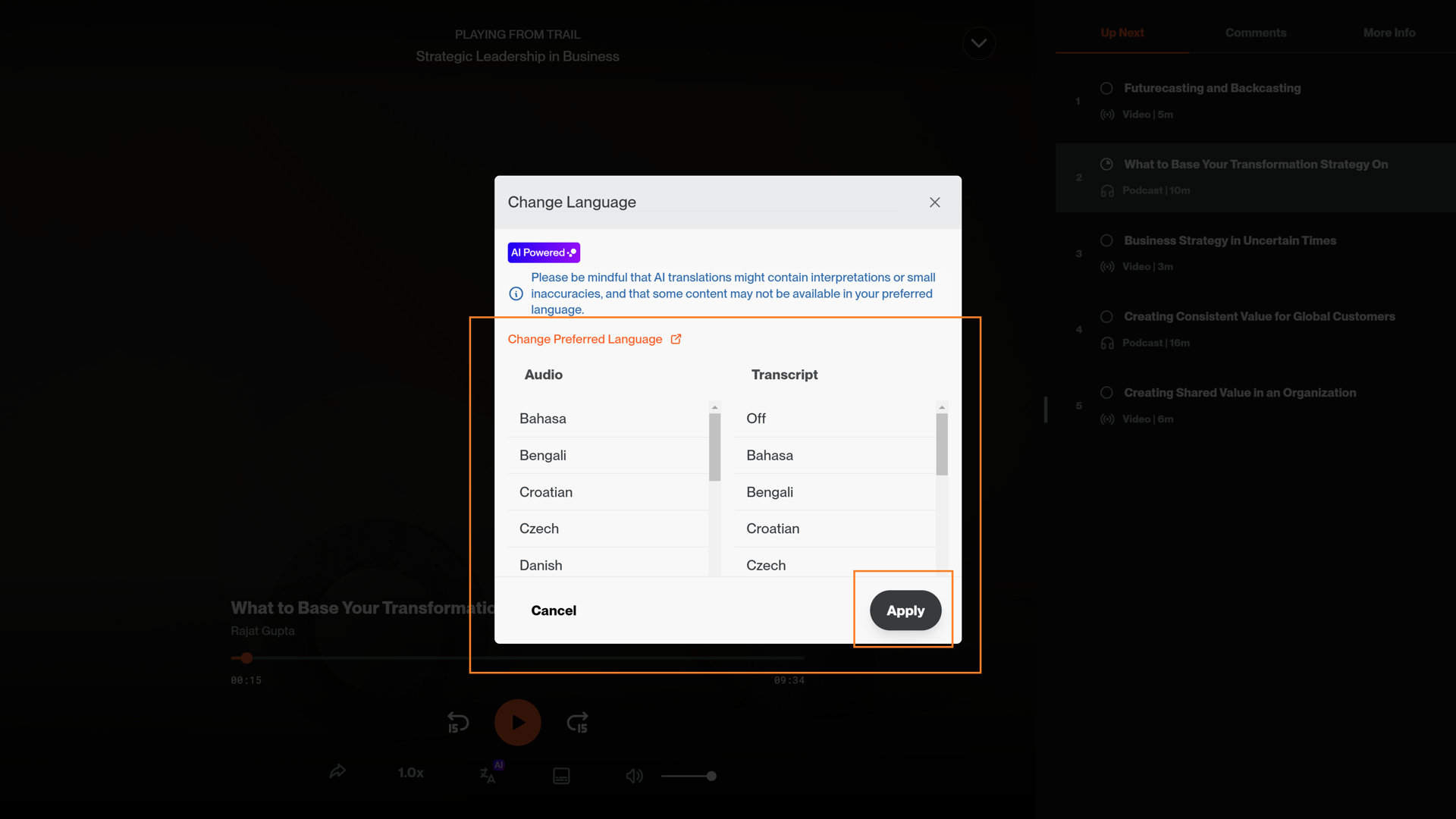
2) Select and apply your preferred audio playback or transcript/closed captioning language to an individual content piece.
Please note that videos do not translate the audio playback, although the closed captioning/transcript can be translated.