Livestreams
Last updated: February 26, 2026
In this section, you will find details on how to join a livestream, book a spot, add to the calendar, and share a livestream.
This page highlights the amazing feature of hosting Livestreams on the Tigerhall app for users to join live conversations with C-Suite executives, leaders, and Tigerhall Thinkfluencers on the go, through their mobile and web apps.
This feature allows employees to engage with global heads of organizations from across industries and from across your organization. Its a great engagement tool to build connections and get facetime with colleagues from different departments!
What is a livestream?
Livestream is an interactive experience hosted in Tigerhall. Imagine Instagram live but with the brightest minds of the professional world where you can ask questions, and participate in discussions directly from your phone or desktop!
How can I join a livestream if I don’t have an existing account on Tigerhall?
Do you have an account through your company? If yes then log in using that account to view the live stream, If not then, you can watch on the web app.
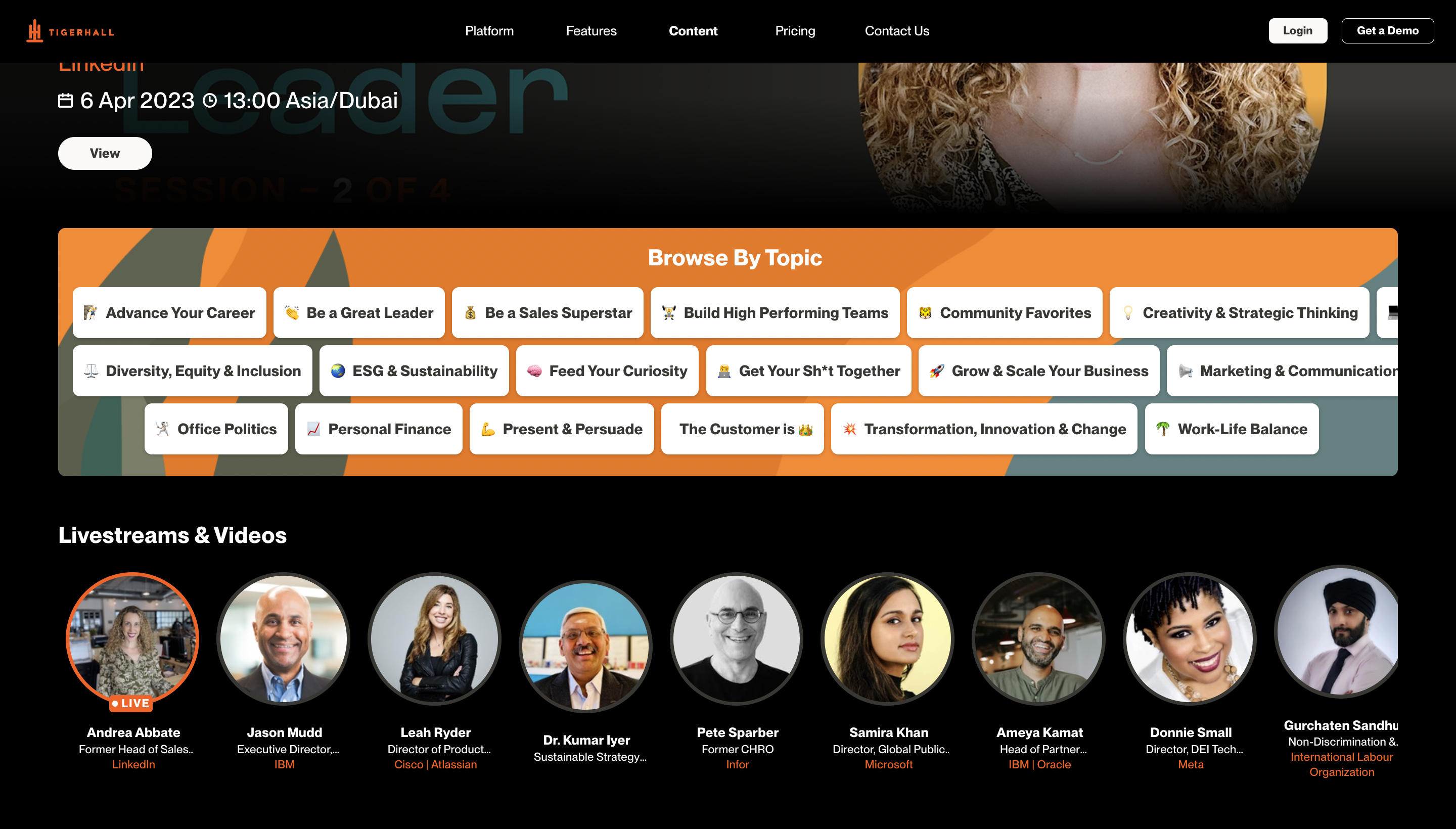
Scroll down to the Livestreams & Video section. Here you will find a circular icon with a flickering ORANGE border labeled LIVE
Click on this icon and you can now view the livestream
To participate in the chat, you can create a free account with us in just 2 simple steps
How can I join a livestream if I have an existing account on Tigerhall?
You can access livestreams on both mobile and web apps. Follow the steps below to join a livestream:
Open the Tigerhall mobile or web app
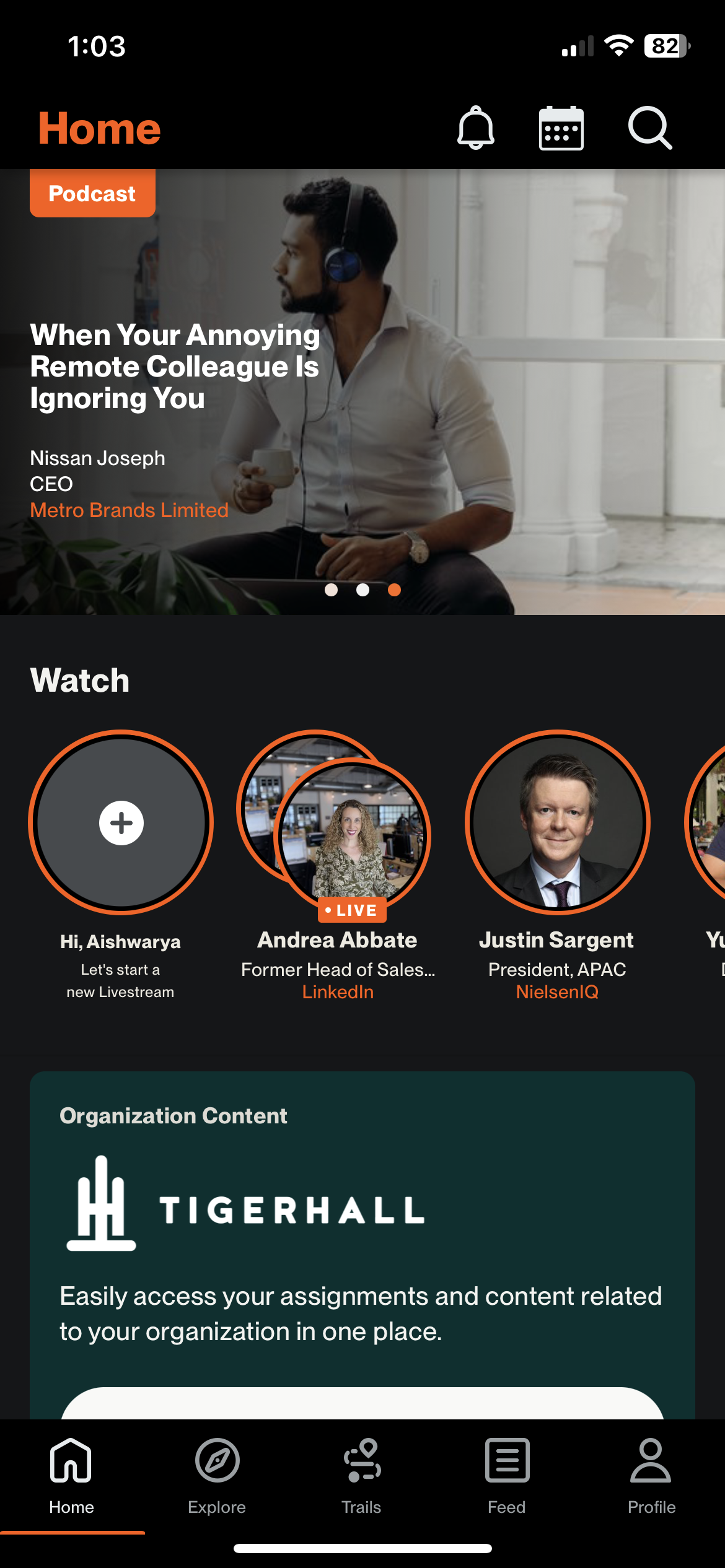
On the Homepage, you will find a circular icon with a flickering ORANGE border labeled LIVE
Click on this icon and you can now view the livestream
Do participate in the chat and ask any questions for the Thinkfluencer, or just say hi and where you’re tuning in from!
How can I add a livestream to my calendar?
Follow the steps below to add a livestream to your calendar:
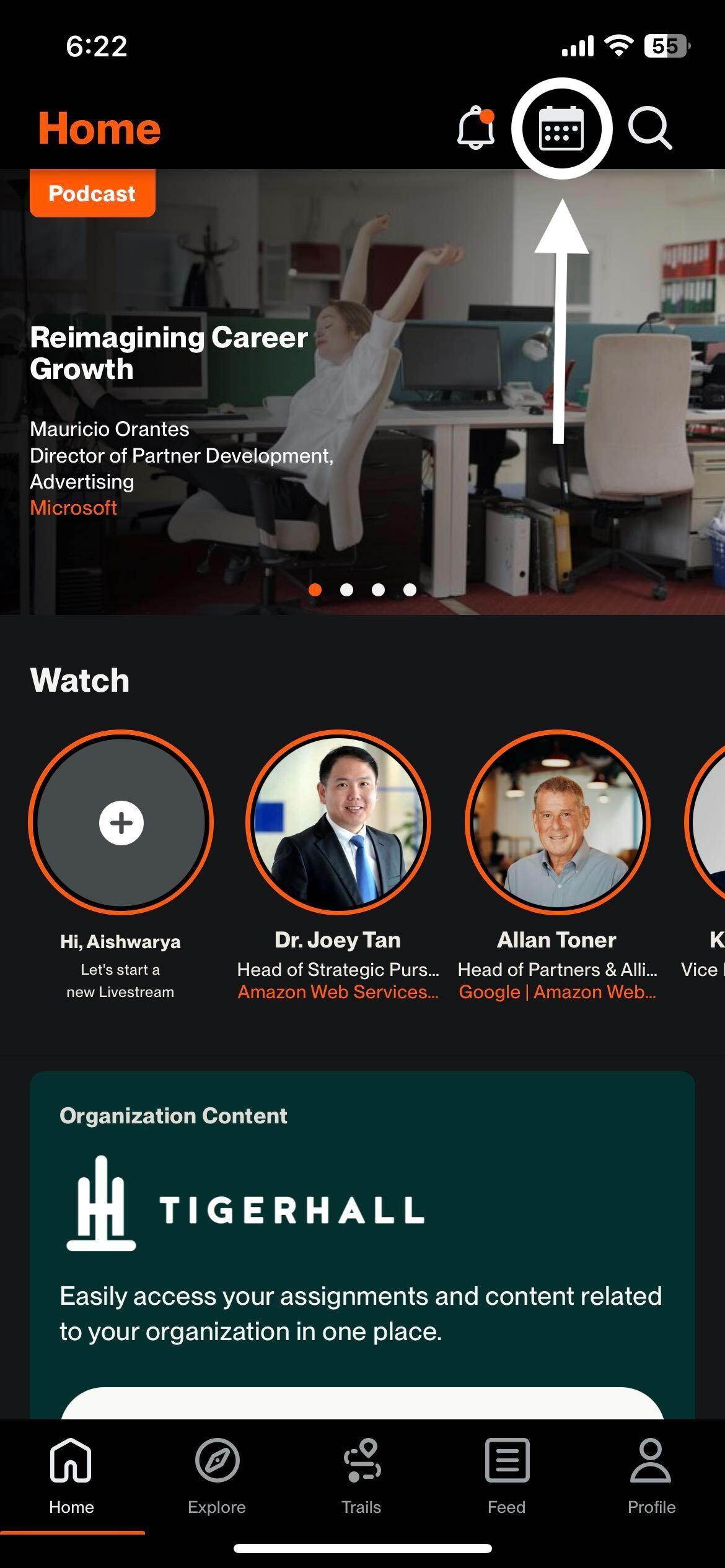
Click on the Calendar icon on the homepage or go to the Upcoming Experiences section on the homepage or the explore page
Choose the experience you’d like to add to your calendar
Click on the calendar icon
How can I book my spot for a livestream?
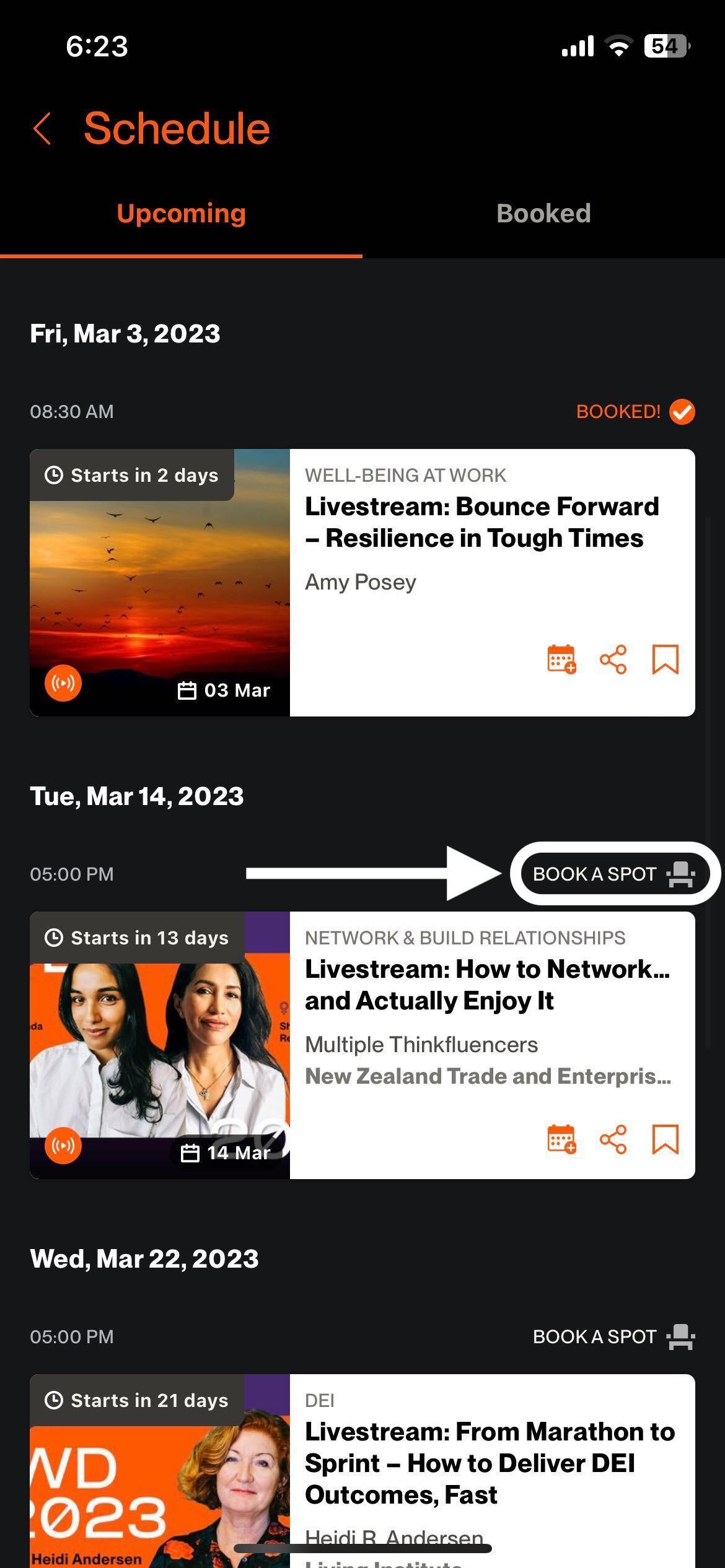
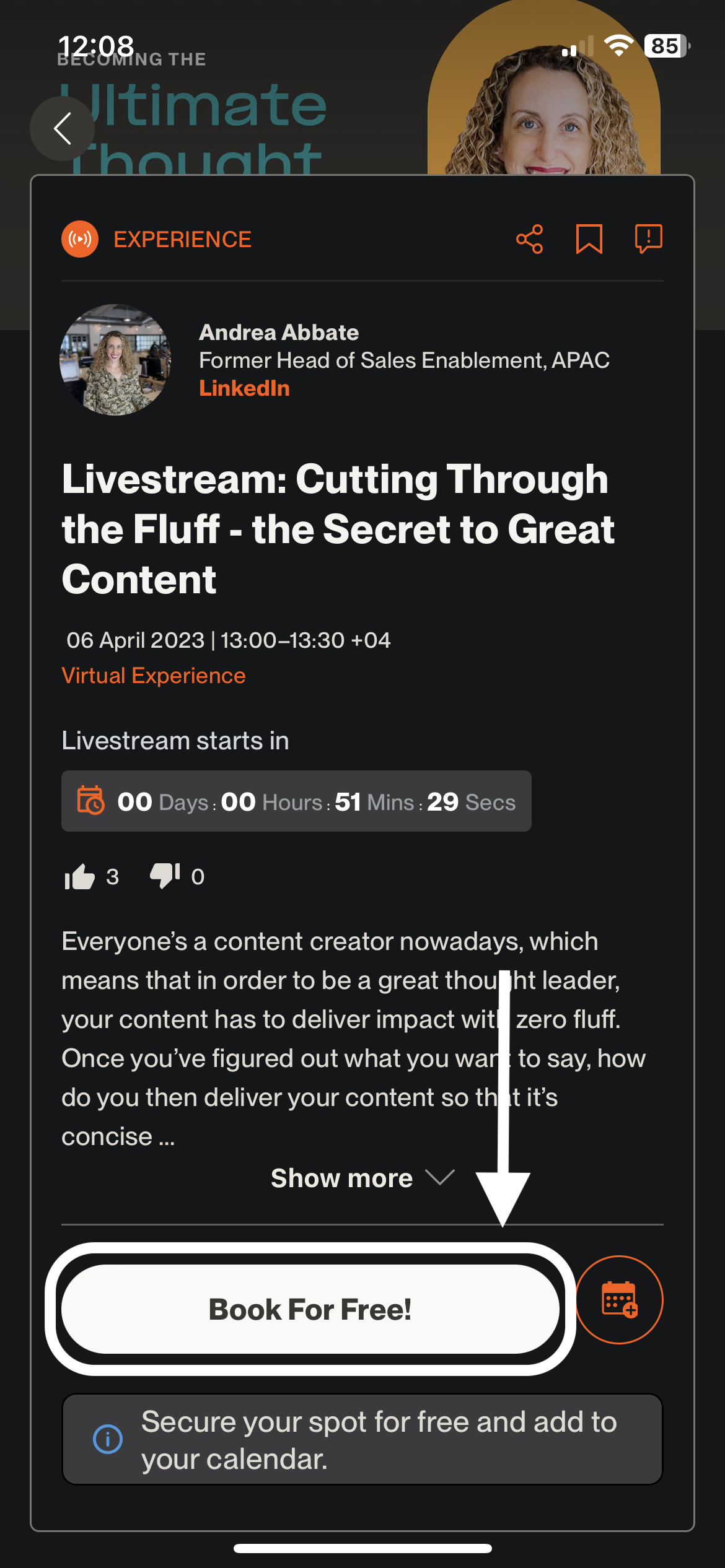
Follow the steps below to book your spot for a livestream on the web app:
Click on the Calendar icon on the homepage or go to the Upcoming Experiences section on the homepage or the explore page
Choose the experience you’d like to book your spot for
Click on the “Book for Free” button
Alternatively, you can click on the experience card and select the “Book for Free” button
How can I share a livestream?
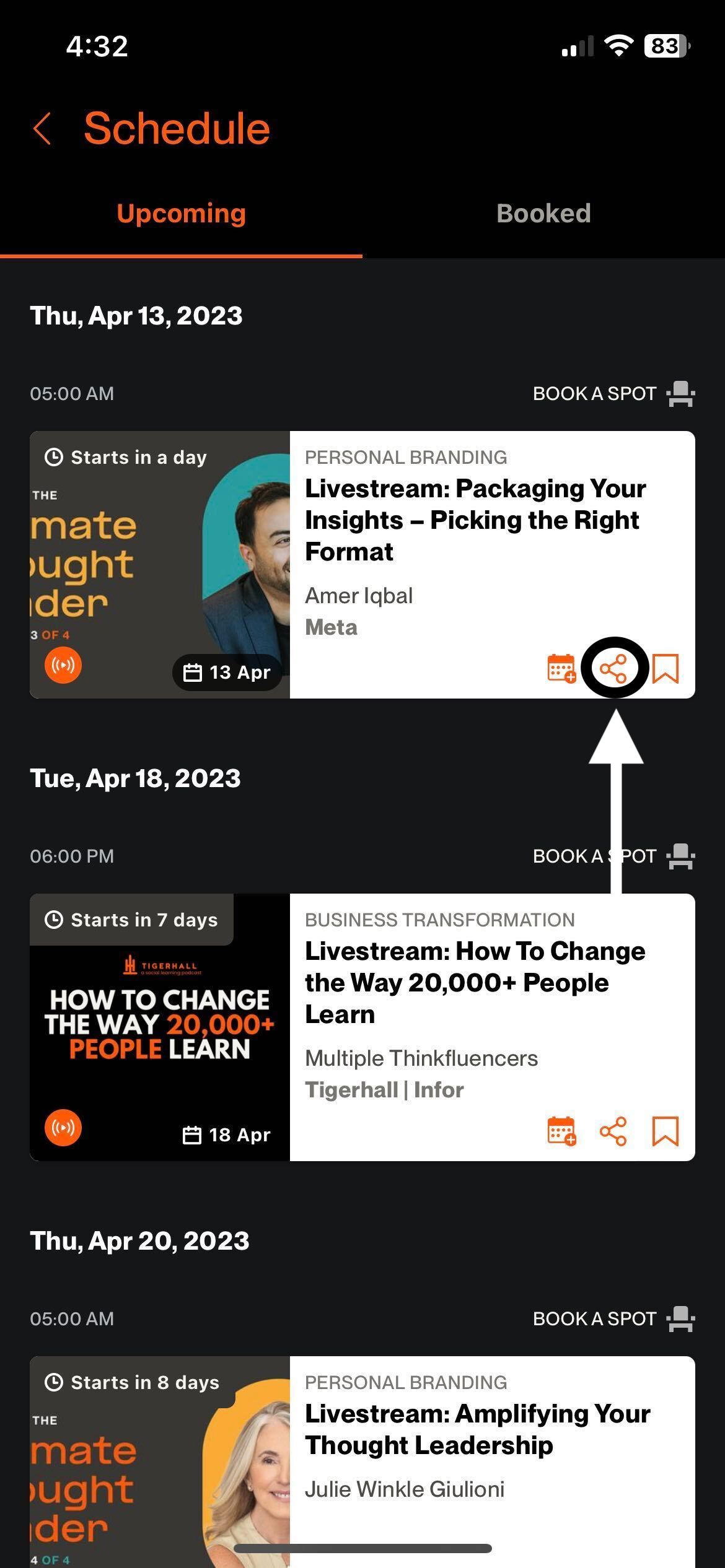
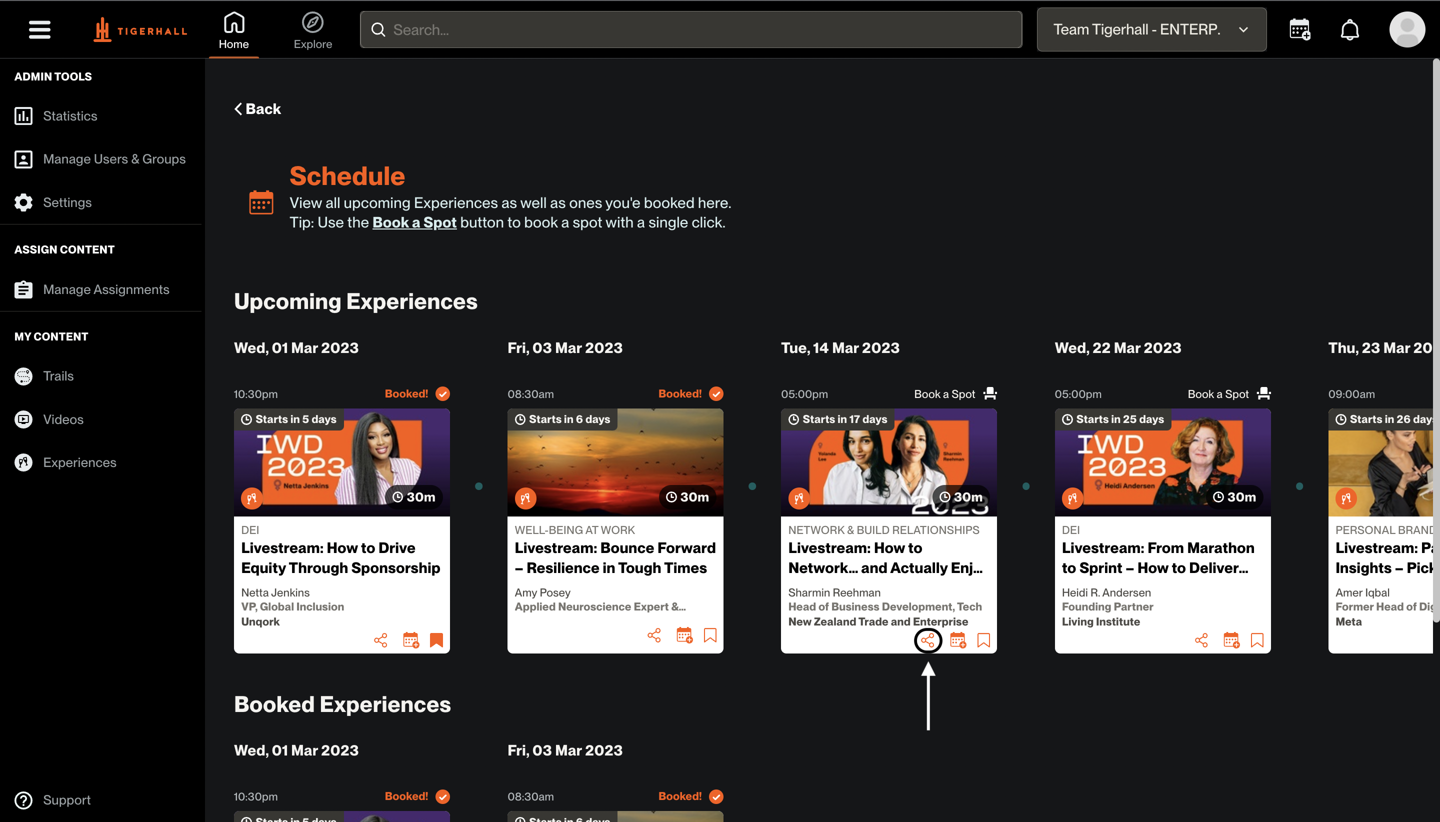
Follow the steps below to share a livestream:
Click on the Calendar icon on the homepage or go to the Upcoming Experiences section on the homepage or the explore page
Choose the experience you’d like to share
Click on the share icon
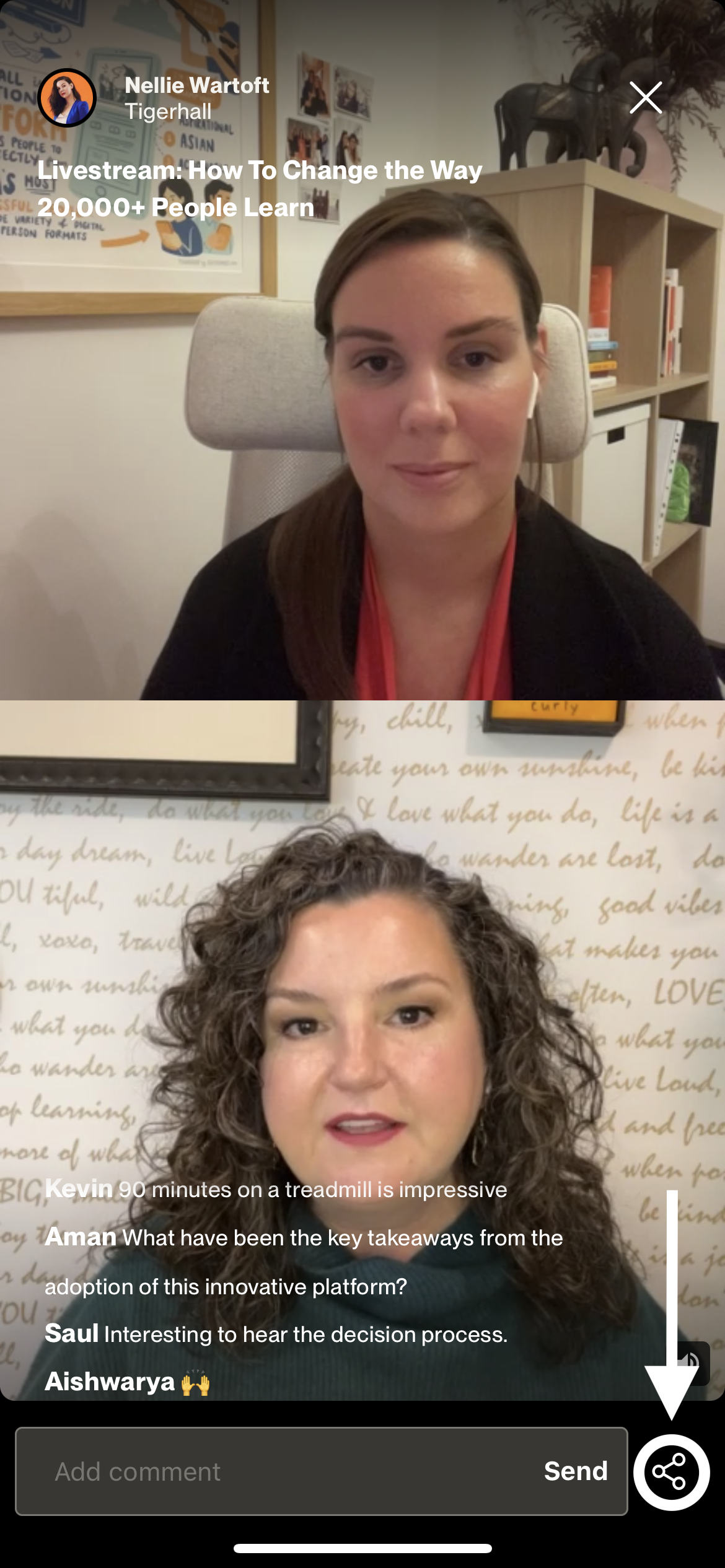
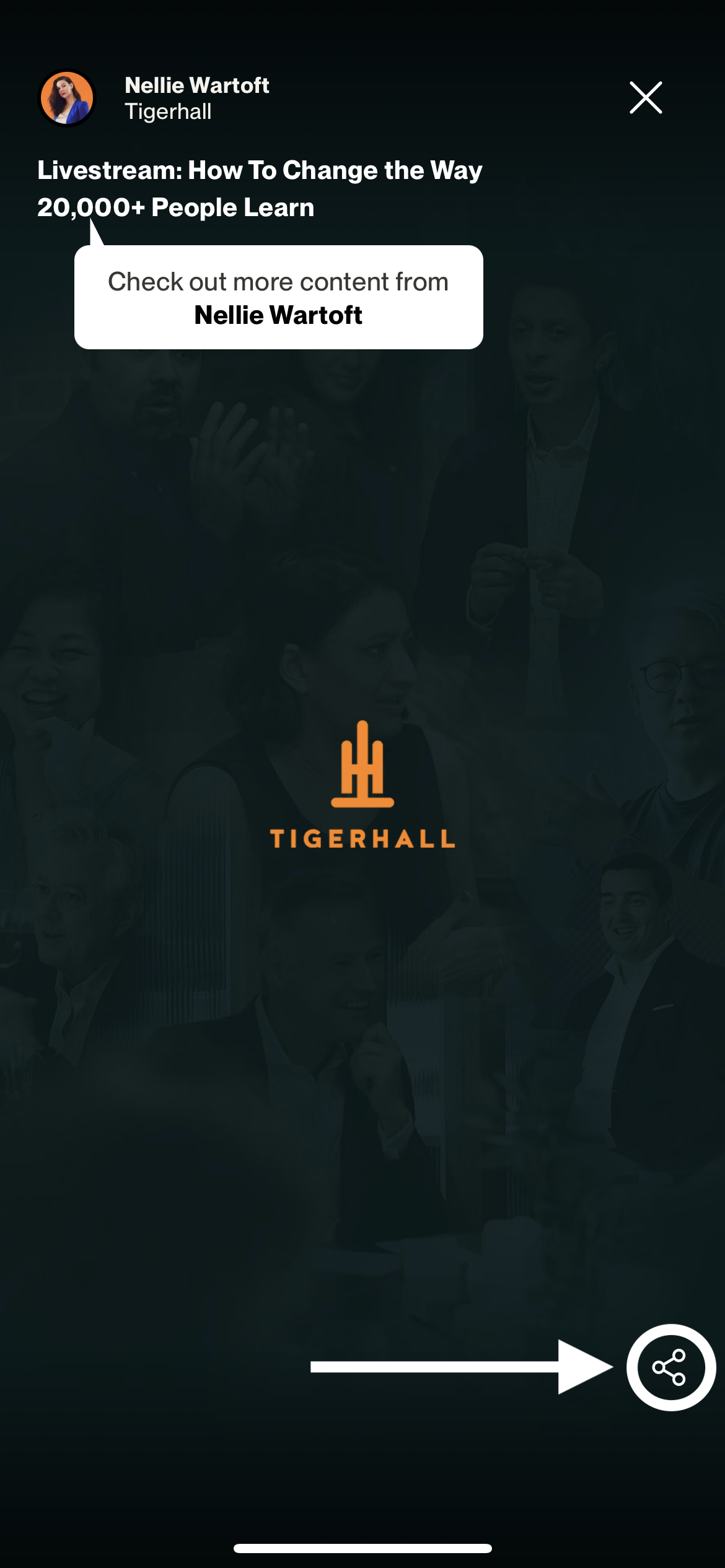
You can also share a livestream during and after the livestream by clicking on the share button on the bottom right corner of the livestream
I would like to host my own livestream on Tigerhall! How can I do this?
If you are getting Tigerhall access via your employer, please confirm internally. If you aren’t sure who to reach out to, drop a note to support@tigerhall.com and we will connect you.